For an NFC card test on iPhone and Android before distribution, check the actual item on the phones your team expects to use in the UAE. Do not rely only on an NFC label in a product description or a demonstration video. Record each step. This guide provides an acceptance method. It does not report an ADMAL device test or guarantee that every phone will open a link in the same way.
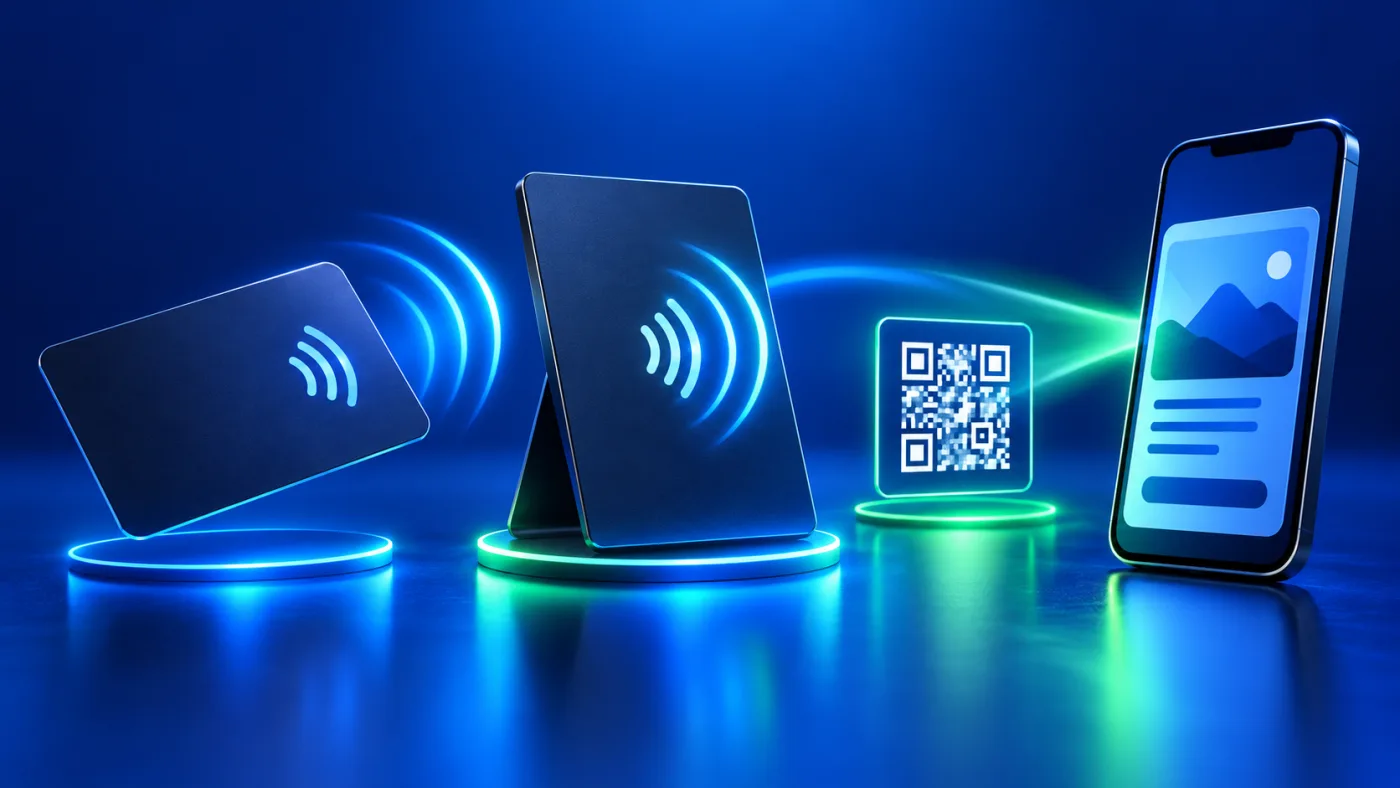
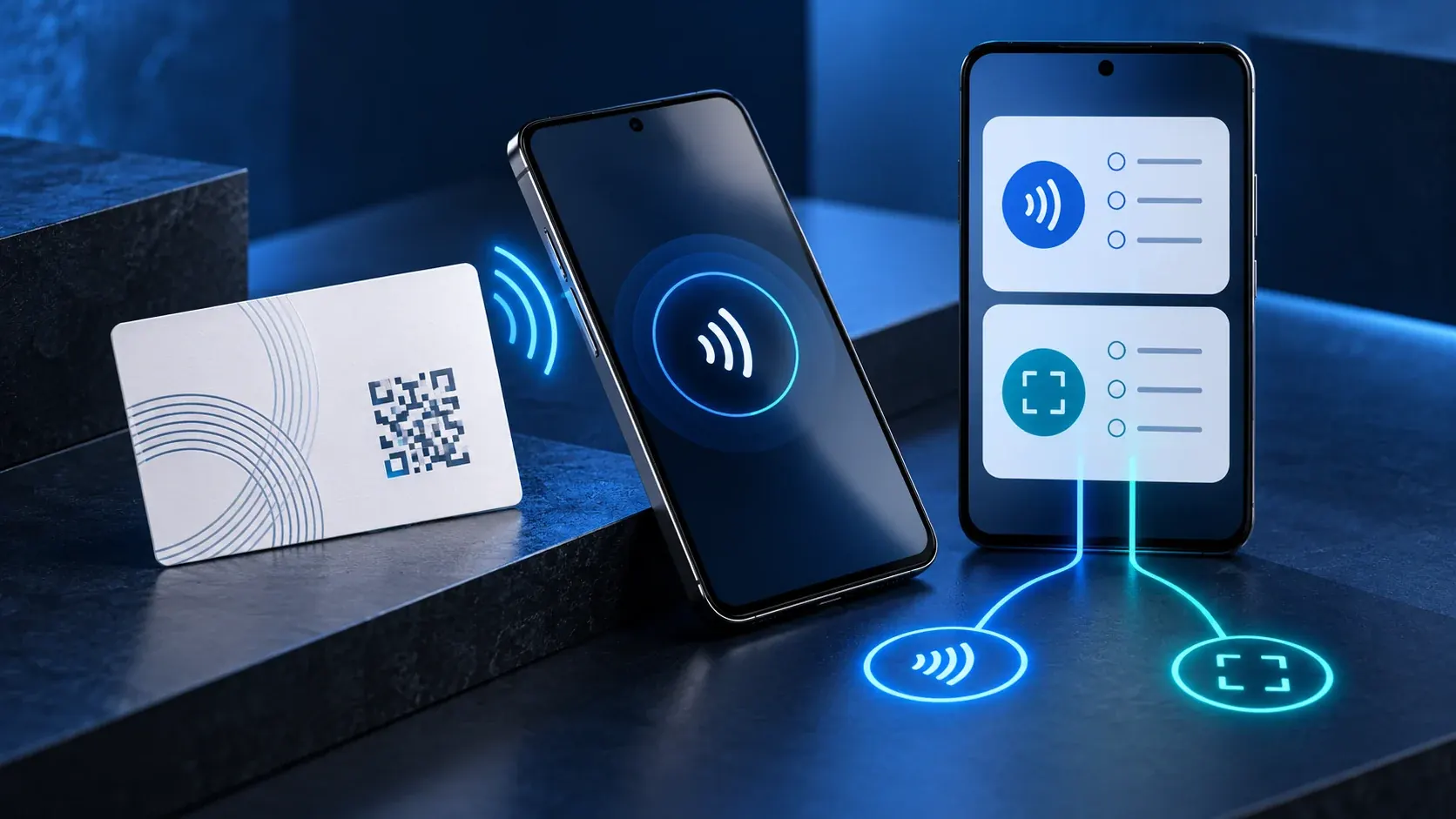
ADMAL’s current PVC NFC Business Card listing identifies both NFC and a printed QR code. They are separate routes to a destination. The NFC Forum technical overview explains that a tag carries data in an NFC format and can prompt a device to take an action, such as opening a link. Test tag detection, destination handling and page usability separately. A successful QR scan is not an NFC pass.
NFC card test on iPhone and Android: define a pass
Write down the result you want to observe. For example: “On this phone, bringing the expected antenna area near this specific PVC card produced a prompt; selecting it opened the intended public ADMAL Digital page.” Do not write “works on every phone.” A small test sample cannot establish universal compatibility.
Separate the route into three stages:
- Detection: Did the phone respond to the NFC card?
- Handoff: Did it show a link or prompt that the person could open?
- Destination: Did the link reach the correct ADMAL Digital page, language and expected content?
During an NFC card test, record the stage at which a test stopped. “No prompt appeared” is an observation; “NFC is broken” is a diagnosis. A result can depend on phone settings, antenna position, lock state, the card or the destination. Note what you saw before deciding why it happened.
Prepare a traceable sample
Use the finished card or an actual sample of the selected product, not a photo or a staged demonstration. Record the exact product and option. Confirm that the intended public digital page opens directly from its URL. Do not change page content or the QR destination while testing a group of phones; otherwise, you will not know whether differences came from the device or the setup.
Start from a consistent state. Wake the phone if its model requires it, and temporarily remove a thick case or other NFC cards from the phone wallet if they could interfere. Change only one condition at a time. Move the card slowly near the expected antenna area and make a small adjustment if there is no response. Antenna placement is not identical on every phone.
For a team with different devices, begin with the phones people actually use rather than a single convenient model. Record each device as tested, and ask staff to follow the same steps on a selected sample if practical. Do not turn results from three phones into a claim about every iPhone or Android model. State the sample clearly and extend the check when a result differs or when distribution depends on greater confidence.
Record the route from tap to page
When a notification appears, read it before opening it. Open the destination and note the URL or page title. Check the language, name, description and important buttons. If a contact button opens a phone or messaging app, record that behavior. A tap is not a sent message or completed enquiry unless the visitor completes the required steps.
If there is no response, repeat once after confirming NFC is enabled, the card is isolated and the page is available. Record the first and second attempts separately. Do not erase phone data or change security settings you do not need for the test. If the behavior remains unclear, stop changing angles indefinitely. Test QR as an independent route, mark NFC unverified, and seek help for the specific product.
| Phone | NFC available and on? | Tag response | Prompt shown | Page opened | Result |
|---|---|---|---|---|---|
| Exact model and OS | Yes / no / unknown | Prompt / no response | What appeared | URL or title | This route passed / did not pass / not tested |
Record one row for each phone. Do not merge a few devices into a sentence that implies every model was tested. Add the test date and the staff member who performed it for your own records. Do not place customer phone numbers or other personal details in the acceptance log.
Keep NFC and QR results separate
Scan the QR code with the phone camera or a suitable reader, then record the URL it opens. Do not combine that result with the NFC column. If QR opens and NFC does not, you have a QR route that worked on that sample and an NFC route that remains unverified. Conversely, an NFC link opening correctly does not prove that the printed QR code reaches the same destination.
Use the current product listing to confirm the selected card’s options and documented behavior. If a printed destination is wrong before production, correct it in the approved design or order details. After printing, do not promise that the QR can be edited. If NFC reading fails, record the phone model, settings, contact point and message. Do not assume that ADMAL changed a link remotely or that the card is defective before the specific case has been checked.
NFC card test checklist before distribution
- An actual sample of the selected product and option.
- The intended digital-page URL opens directly in the correct language.
- At least one iPhone test if the team uses iPhones, with model and OS recorded.
- At least one Android test if the team uses Android, with model and OS recorded.
- Separate result rows for NFC and QR.
- The prompt or destination observed, not only “it worked.”
- A check of important page buttons without submitting test details to a real account owner.
- A clear label for each device or route that was not tested.
P18 explains the route from NFC tap to a digital profile. This article focuses on documenting device acceptance before distribution. Use this NFC card test record to make an internal decision about a specific sample; it is not a universal compatibility promise or formal certification.
Frequently asked questions
Does one phone prove the card works with every phone? No. The result applies to the specific device, software, card and settings at the time of the test.
Does a successful QR scan prove NFC works? No. Scan and record QR separately from a tap.
What if no prompt appears? Check NFC settings, antenna position and the phone case, then make one controlled repeat attempt. If it still fails, test QR separately and seek guidance for that item.
Can I say ADMAL tested my phones? Only if an actual ADMAL test record exists for the card and devices you name. This article provides a buyer-run test method.