“Tap to share” becomes easier to understand when you break it into separate events. The card and phone make a near-field connection; the phone interprets the available action; a web destination loads; and the visitor decides what to do on that page. Keeping those stages separate makes setup and troubleshooting much easier. This guide follows the visitor’s path and gives the card owner a test that does not depend on a promotional demo.
The cover illustration is conceptual; this guide explains the visitor path and is not a recording of a physical card test.
How NFC business cards work: four separate stages
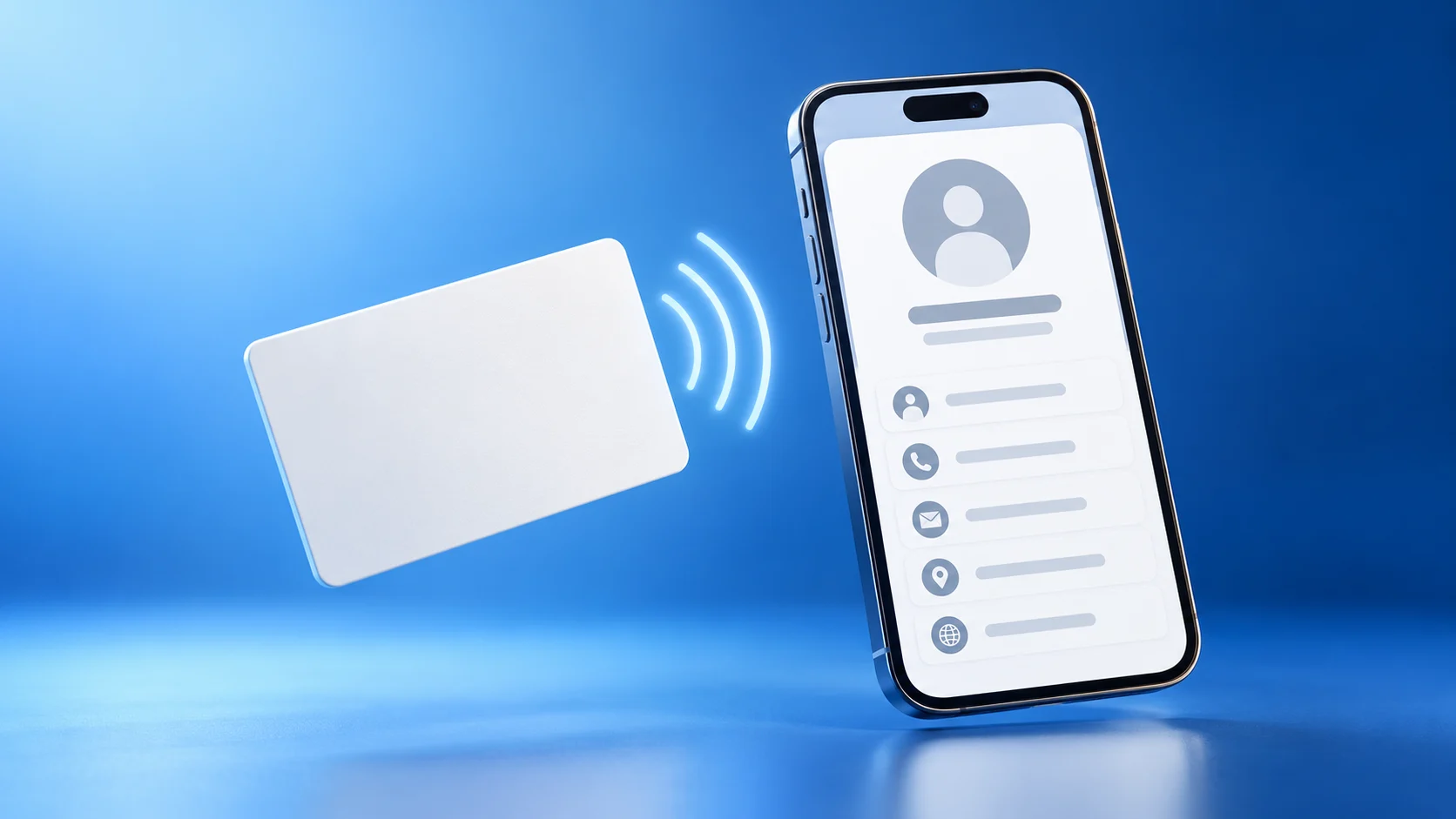
- Near-field readBring a compatible phone close to the card. NFC works over a short range, and the phone’s reader position varies. If nothing happens, move it slowly across the marked area. The NFC Forum’s overview explains this short-range tap model.
- Phone responseThe operating system handles the detected interaction. Its notification, prompt or opening behavior can vary by device and software version; do not promise that every visitor sees the same screen.
- Browser destinationADMAL’s listing says the tap opens the card owner’s ADMAL Digital page in the phone browser without a separate ADMAL app. The web page still needs a working internet connection to load.
- Visitor actionThe visitor chooses a contact or business link. A tap alone does not make a call, send a message or save the contact.
How NFC business cards work: run a public handover check
Use the same check after setting up a card or changing its digital destination. Test the visitor experience rather than relying only on an account preview:
- Open the profile from a phone that is not signed in to the owner’s ADMAL account. Confirm that the public page loads and identifies the right person.
- Tap the physical card with a compatible phone. Keep the phone near the marked NFC area until the device responds. Follow the on-screen prompt if one appears.
- Check that the resulting page is the intended profile, in the expected language, with the correct public contact actions. Do not test using an account-only preview.
- Open one contact action and confirm that it leads to the expected phone, email or destination. Cancel before sending anything if this is only a setup check.
- Test the printed QR separately with the phone camera. Record whether NFC and QR reach the intended public destination; success on one route does not prove the other route works.
For the specific card’s listed material and QR/NFC setup, read the current ADMAL PVC NFC business-card page. The broader NFC card and smart-stand selection guide helps compare physical formats; it is not a substitute for checking the exact item and destination.
If a tap fails, locate the failing stage
| What you see | Check next | What the result tells you |
|---|---|---|
| No response from the phone | Confirm that this phone supports NFC; check its setting if available, wake or unlock it as needed, then slowly reposition over the marked area. | The phone may not have read the card; that does not prove the card or destination is faulty. |
| A notification or link appears, but the page does not load | Open the offered link, check the phone’s internet connection, and try the public destination in a browser. | The phone detected the NFC interaction, so investigate the network, browser or web destination next. |
| The wrong profile opens | Compare the opened page with the intended public destination. Check the card setup and its current owner instructions before changing anything. | The read worked, but the destination needs review. ADMAL states that a holder can change NFC locally; ADMAL cannot rewrite it remotely. |
| NFC does not work, but the QR scan opens the page | Keep QR and NFC as separate checks. Confirm the card’s current NFC destination and use the product’s official setup instructions. | The QR route is working. It does not establish that the NFC route is configured correctly. |
| Neither route reaches the intended public page | Check the public page URL and network first. Then compare the physical QR destination and NFC setup with the confirmed destination. | The issue may be the online destination, the printed code or the NFC setup; isolate each before requesting a replacement. |
Do not use random tag-writing apps or assume a phone prompt proves the destination is safe. If official setup steps do not resolve a mismatch, contact ADMAL with the card and phone models and the observed step; avoid sharing private account data publicly.
NFC, QR and the profile do different jobs
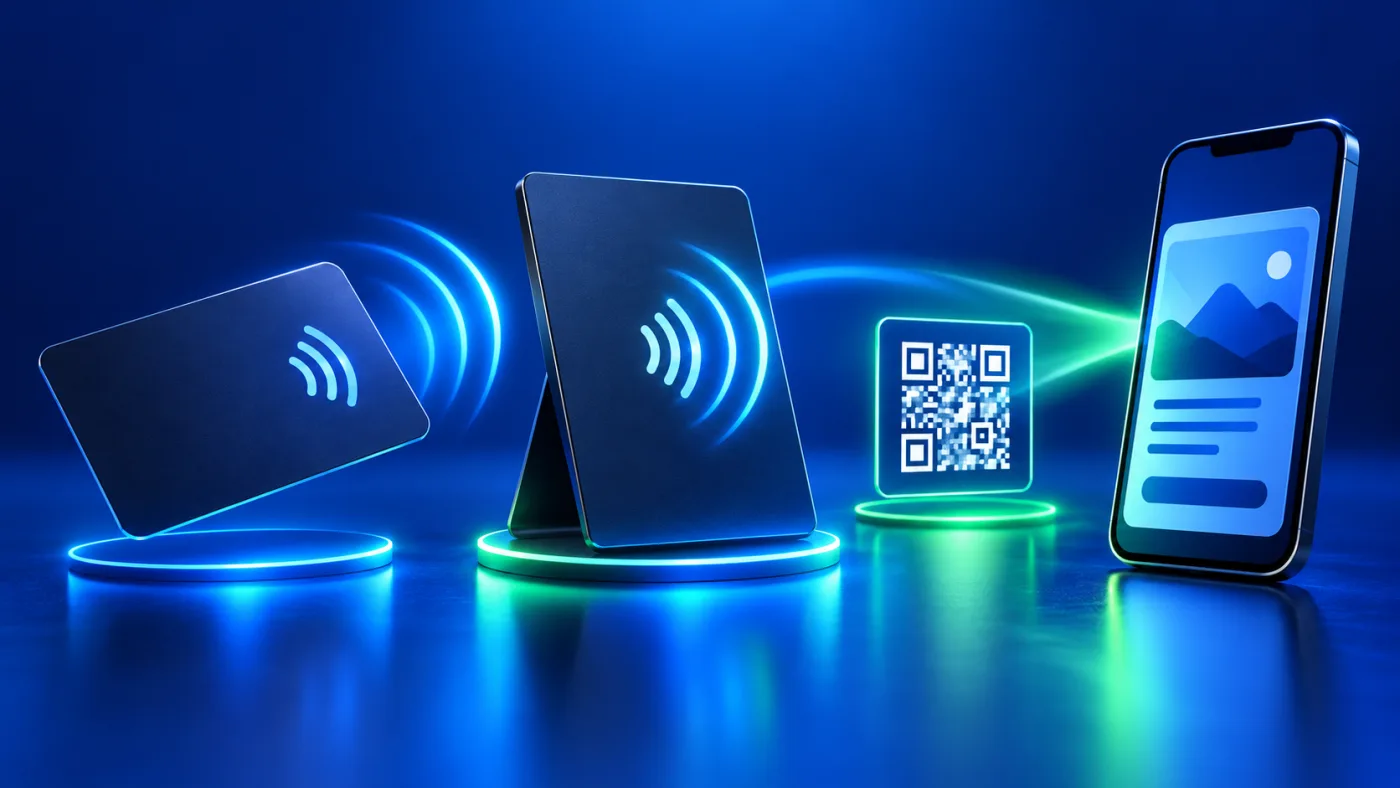
In a real handover, how NFC business cards work depends on the card’s NFC touchpoint, the printed QR route and the public digital profile.
- NFC is a proximity route: the visitor brings a supported phone close to the physical card. It is convenient when the card is already in hand.
- QR is a camera route: the visitor points a phone camera at the printed code. On this product listing, the QR is printed on the card. Its destination must be correct before the card is made; a printed QR is not remotely rewritten after production.
- The digital profile is the destination: it is the public page that displays the owner’s approved details and actions. Updating that page is different from changing what the physical NFC touchpoint or printed QR points to.
The NFC Forum’s plain-language NFC explainer describes NFC as a close-range way to initiate an action. It does not confirm how a particular ADMAL card is encoded. ADMAL’s public listing confirms the visitor-facing behavior for this card, but does not publish its chip model or exact data format. This guide therefore describes the observable product behavior and leaves those internal details unspecified.
How NFC business cards work on the ADMAL PVC card
The current ADMAL product page identifies a PVC NFC business card with a printed QR route and says that a tap opens the owner’s ADMAL Digital profile. It also states that visitors do not need a separate app. The page says NFC can be changed locally by the product holder and cannot be changed remotely by ADMAL; the printed QR remains fixed after production. These are the product-specific facts used in this guide.
The listing does not prove that every phone uses the same prompt or that every visitor will tap successfully on the first attempt. Confirm the live destination on the physical item you intend to use; neither the conceptual cover image nor a promotional clip proves the route.
Questions card owners ask
Does the card store the complete digital profile?
The public product listing says that tapping opens the owner’s ADMAL Digital page in a browser. It does not document the card’s exact chip data format, so this guide does not claim that the full profile is stored on the card. The profile is the web destination the visitor sees.
Does a visitor need an ADMAL app?
The current product listing says a separate ADMAL app is not required for a visitor to open the page. A compatible phone must still read the NFC interaction, and the browser needs internet access to load the online profile.
Will tapping automatically save my contact or send a message?
No. The tap opens the public profile. The visitor chooses whether to use a contact action and completes any call, message or save operation on their own phone.
Can I use QR if a phone cannot read NFC?
Yes, this product listing includes a printed QR route. The visitor scans it with a camera that supports QR reading. Test the QR separately because it is a different physical route from NFC.
Can ADMAL change the card’s NFC destination remotely?
The product page says the holder can change NFC locally while holding the card, but ADMAL cannot change it remotely. Follow the product’s official setup instructions. The printed QR destination stays fixed after production.
Does the illustration show a tested ADMAL card?
No. It is a conceptual illustration made for this explanation, not a real card test. A successful test must be performed with the physical card and a compatible phone.