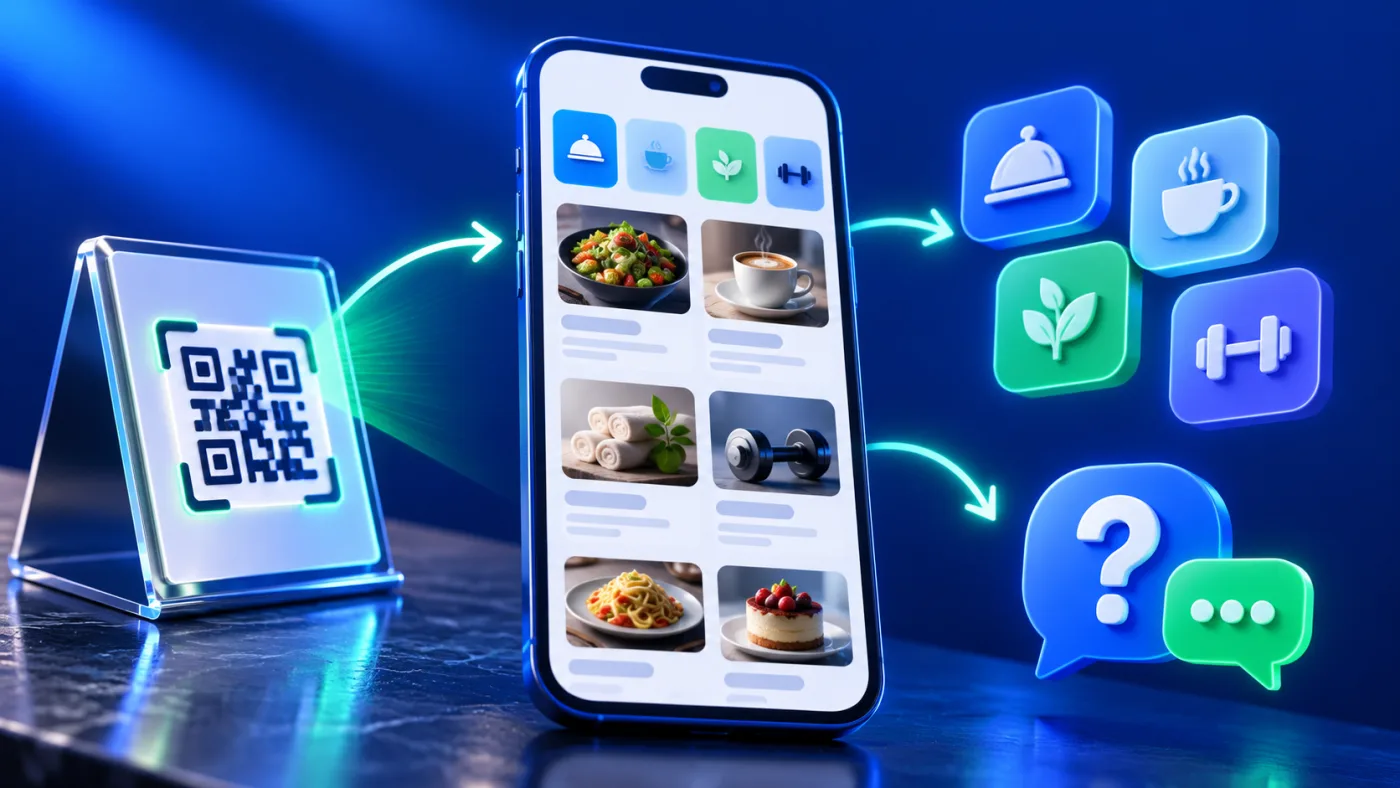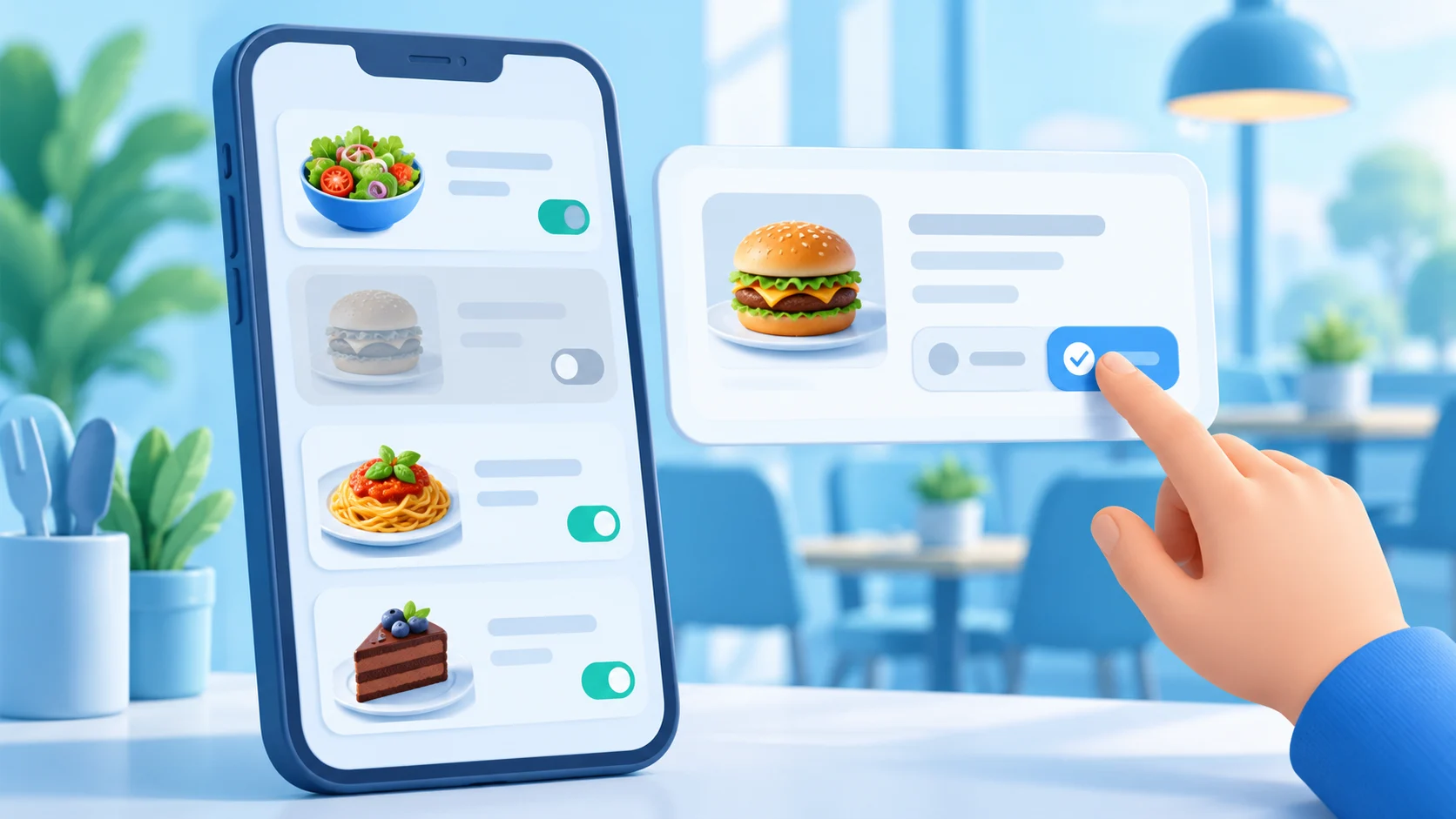

A QR service catalogue gives a business buyer one concise place to understand what a supplier does, what information is available, and how to ask a relevant question. For a printing company or professional-services provider, it can connect a sample sheet, brochure or event handout to an organized digital Menu page. The QR code opens information; it does not by itself submit a purchase order, reserve production capacity, approve a specification or confirm an engagement.
For providers in the UAE, a QR service catalogue should reflect the business’s actual services and contact routes. A supplier may list Dubai, Abu Dhabi, Sharjah, Ajman, Fujairah, Umm Al Quwain and Ras Al Khaimah only where it operates or accepts work. Listing the Emirates does not prove nationwide coverage.
Start with the buyer’s next decision
A buyer usually arrives with a task, not a desire to browse a company’s entire history. They may need packaging samples, a print format, a design consultation, document preparation or another professional service. Begin by identifying the questions that help the buyer decide whether to contact the right team: what the service covers, what information the buyer should prepare, and what the next conversation can clarify.
Keep the catalogue focused on the provider’s current, verified service lines. A printing supplier might group work by business need, such as identity materials, packaging, event collateral and large-format output. It should publish each category only if the supplier actually provides it. A consultancy or technical firm can use the same structure for its own service families. The page should not imply that every example is available from every provider.
Give each category a short factual description. Explain the deliverable in familiar language, state a genuine boundary when it affects the request, and identify the best next step. Replace vague claims such as “complete solutions for everything” with clear descriptions of the work a visitor can ask about. If a specification depends on the brief, say which details the provider confirms after reviewing it.
Choose a QR service catalogue buyers can scan
A compact catalogue is easier to maintain than a page that attempts to reproduce every service file. Select a small set of categories that represent the provider’s main capabilities. Use a consistent pattern for each entry: service name, what it includes, what the buyer supplies, and the next action. This makes unlike offerings easier to compare without claiming they are identical.
ADMAL’s User Guide describes two Menu formats. Visual Menu supports up to three named PDF links and up to ten gallery images. Quick Products displays up to ten individual entries in the inspected editor. These limits describe page formats; they do not promise production capacity or online ordering. Review the ADMAL Menu setup guide and choose the format that fits the material the business can keep current.
Use Visual Menu when the provider already maintains a concise, approved brochure or service sheet that buyers need to view. Use Quick Products when the individual service entries need their own short description. A PDF should be legible on a phone and have an informative filename. An image gallery should show relevant examples with permission and without exposing a client’s confidential project details.
Show useful evidence without exposing client work
Buyers often need enough evidence to understand a supplier’s process before they share a detailed brief. A provider can describe its own workflow, explain which files it accepts, and show examples that it has permission to publish. Separate general capabilities from a particular client’s result. Do not use a recognizable logo, commissioned design, private drawing or customer document unless the rights holder has approved its publication.
Some services depend on material, dimensions, finish, file quality, quantity or installation conditions. State that the provider confirms these details for each request. Do not turn an illustrative image into a specification. A sample can help a buyer ask a better question, but it does not verify what another supplier or branch will deliver.
A simple “prepare before contact” list can reduce back-and-forth. Ask for only the information that helps the provider route the inquiry, such as the service category, intended use, preferred branch, deadline if relevant, and an approved reference file. Do not invite sensitive personal or business information through a general public page when a secure or established channel is needed.
Make the QR service catalogue route clear and testable
The QR code should lead to the catalogue page the printed or digital material promises. A QR service catalogue should open the information named beside the code. Put a short instruction beside it, such as “Scan to view service categories” or “Scan to ask about a project.” Avoid wording that suggests an order has been placed or an appointment has been booked when the destination only displays information or opens a conversation.
ADMAL’s guide explains that a QR link can be set up with a selected page type, including Menu, and that WhatsApp and website fields require complete destination URLs. A business can use an ADMAL Menu page as the information destination, then choose a real contact path that its team monitors. Read the ADMAL guide to URLs and links before entering a destination, and test it on a phone that is not signed in to the owner’s account.
A WhatsApp button opens a conversation; it does not automatically create a formal quotation, purchase order or project record. Tell the visitor what to include in the first message, and route that message to the appropriate team. If the provider uses an enquiry form, test every required field, confirmation message and follow-up process before displaying it as the next step.
Route inquiries to the right team or location
When a provider has more than one office or service location, each route should be explicit. Show the location that handles the inquiry, its current contact details and the services actually supported there. Do not send every visitor to one generic number if it regularly lands with the wrong team. If the provider operates in multiple Emirates, list only verified locations and clarify whether a visitor should contact a central team first.
A buyer may not know whether to ask about a sample, a technical detail or a project brief. One contact path can still work if it asks the visitor to choose a service category and then tells them what information to include. Keep the label specific: “Ask about a print specification” is clearer than “Click here.” When the business cannot confirm a requirement from the page, direct the buyer to the team rather than suggesting that the QR destination has already approved it.
Make every page easy to use on a phone
Most buyers open a QR destination on a phone. They may be holding a sample, standing at an event or reviewing a handout. Keep the page readable without zooming, use descriptive link labels and place the next action beside the relevant service. Do not rely on colour alone to distinguish categories. Add useful alternative text to images and keep essential specifications in text rather than embedding them in a picture.
If the provider serves customers in Arabic and English, review both versions together. Keep category names, service boundaries and contact instructions aligned, and test the language switch on the public page. A translated PDF should be checked at the same time as its page link; otherwise the visible catalogue can look complete while its attached document remains out of date.
A compact page should still give visitors enough context. Break long descriptions into short paragraphs, use headings that match buyer questions, and make the QR instruction easy to find. Ask a colleague unfamiliar with the page to locate a service and contact the right team. Their test can reveal unclear labels before the business distributes a large batch of printed material.
Keep the catalogue current after it is shared
Assign a person to review the catalogue when a service changes, a document is replaced, a contact route changes or a location stops handling requests. Keep the QR service catalogue current with those operational changes. Add a review date to internal records and make the person responsible for checking that linked files remain available. Remove an obsolete PDF instead of leaving buyers to discover that it no longer reflects current operations.
Before sharing the QR code, save the page, preview it, test every link and confirm the public visitor view. ADMAL’s save, preview and test guide explains this sequence. Test the full journey on a phone: scan the code, read the service entry, open the file, follow the contact action and confirm that the intended team receives it.
For providers serving buyers across the UAE, the same review should check every actual location named on the page. A QR service catalogue works best when the page and the operation behind it stay aligned.
If the provider needs a hosted QR destination for service information, compare ADMAL Digital QR Plans. For a physical counter display, review ADMAL Menu Stands. These options do not provide an integrated order or payment process by themselves.