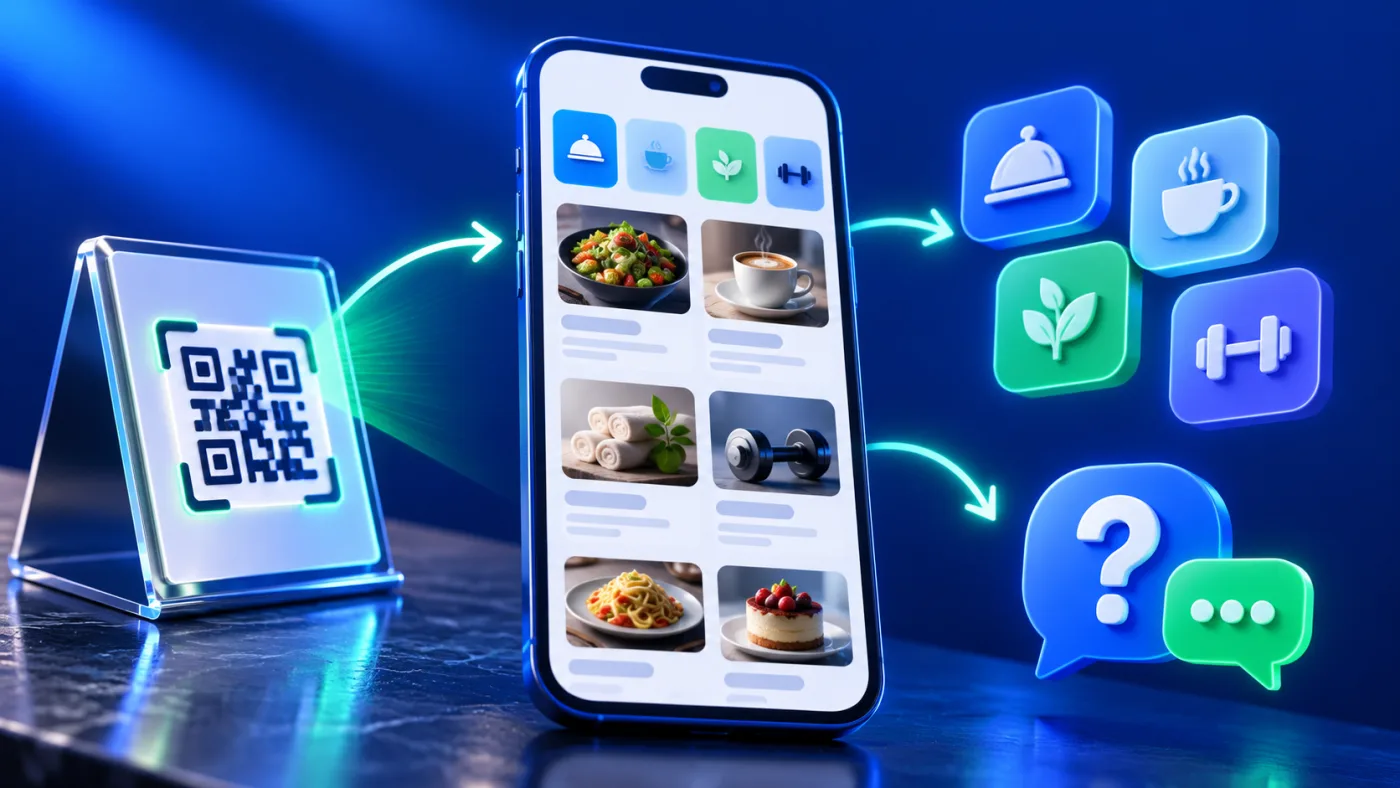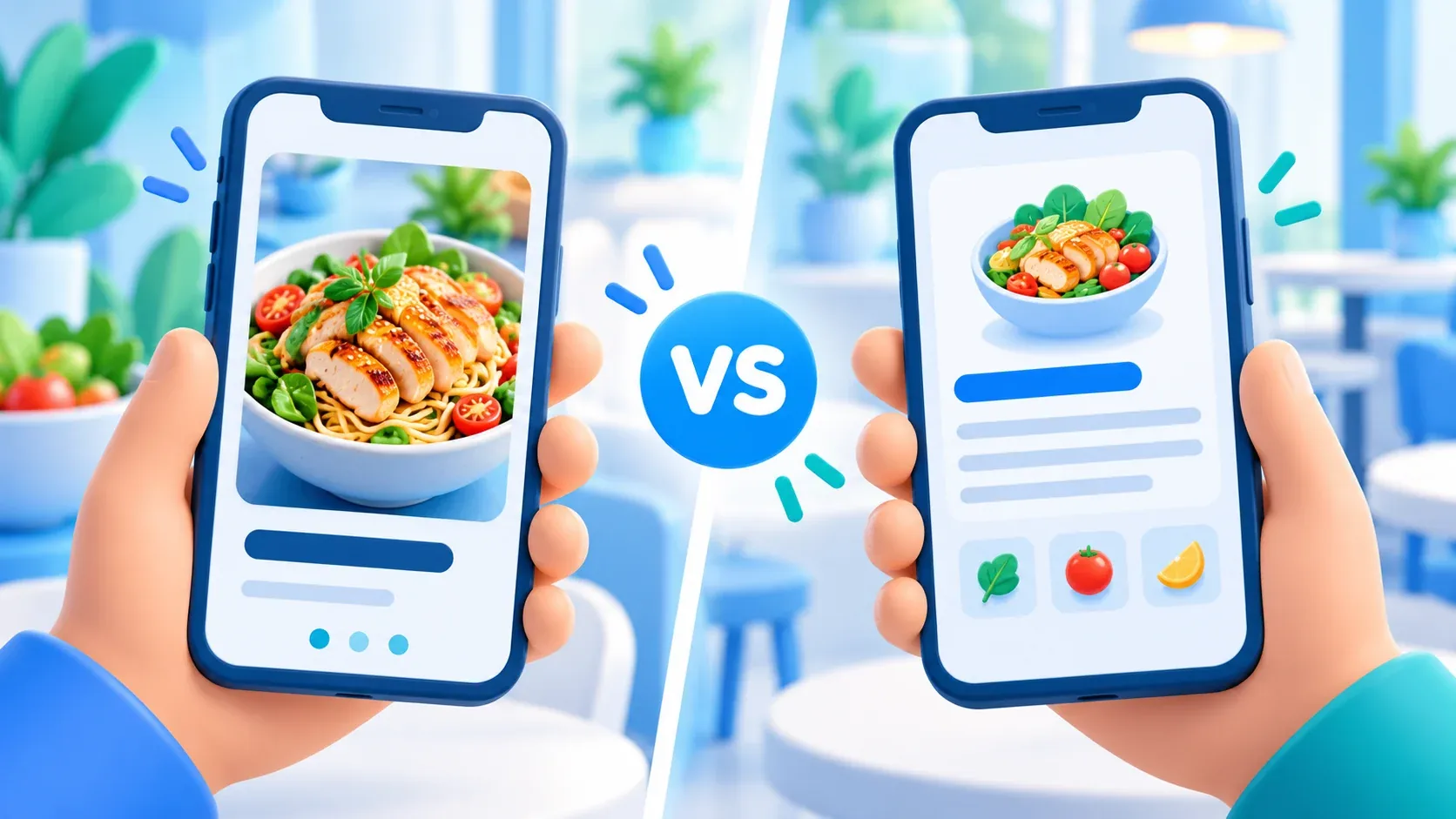
A QR menu can include attractive photos and still leave visitors unsure what an item contains. The choice is not “images or words”; it is deciding what each photo helps visitors recognize and what the text must explain. This guide to QR menu images gives each format a clear job and checks both on a phone.
This guide is for menu owners in the UAE who want visitors to recognize an item without relying on a photograph to explain important details. It does not assume that a QR menu accepts orders, processes payment or updates availability automatically.
Decide what a QR menu needs to show
A photo can help someone recognize a dish, product or service at a glance. A written description can explain what is included, how an option differs, or what action follows. Before choosing an image, ask what question it answers. If two choices look similar, a short, specific description may be more useful than another photo. If the visitor cannot recognize the item from its name, a genuine photo may add helpful context.
Keep the business’s real offering as the source of truth. A styled image should represent the actual item closely enough that it does not create a false expectation. If portions, ingredients, materials or service scope vary, describe the verified details in text and ask the responsible team to review them.
Use images to clarify, not decorate
Choose a photo when its subject helps a visitor identify or distinguish the item. Keep the subject visible at phone size, use a consistent crop, and remove background clutter that competes with it. Avoid a gallery where every image repeats the same view or shows a serving suggestion that the business does not provide.
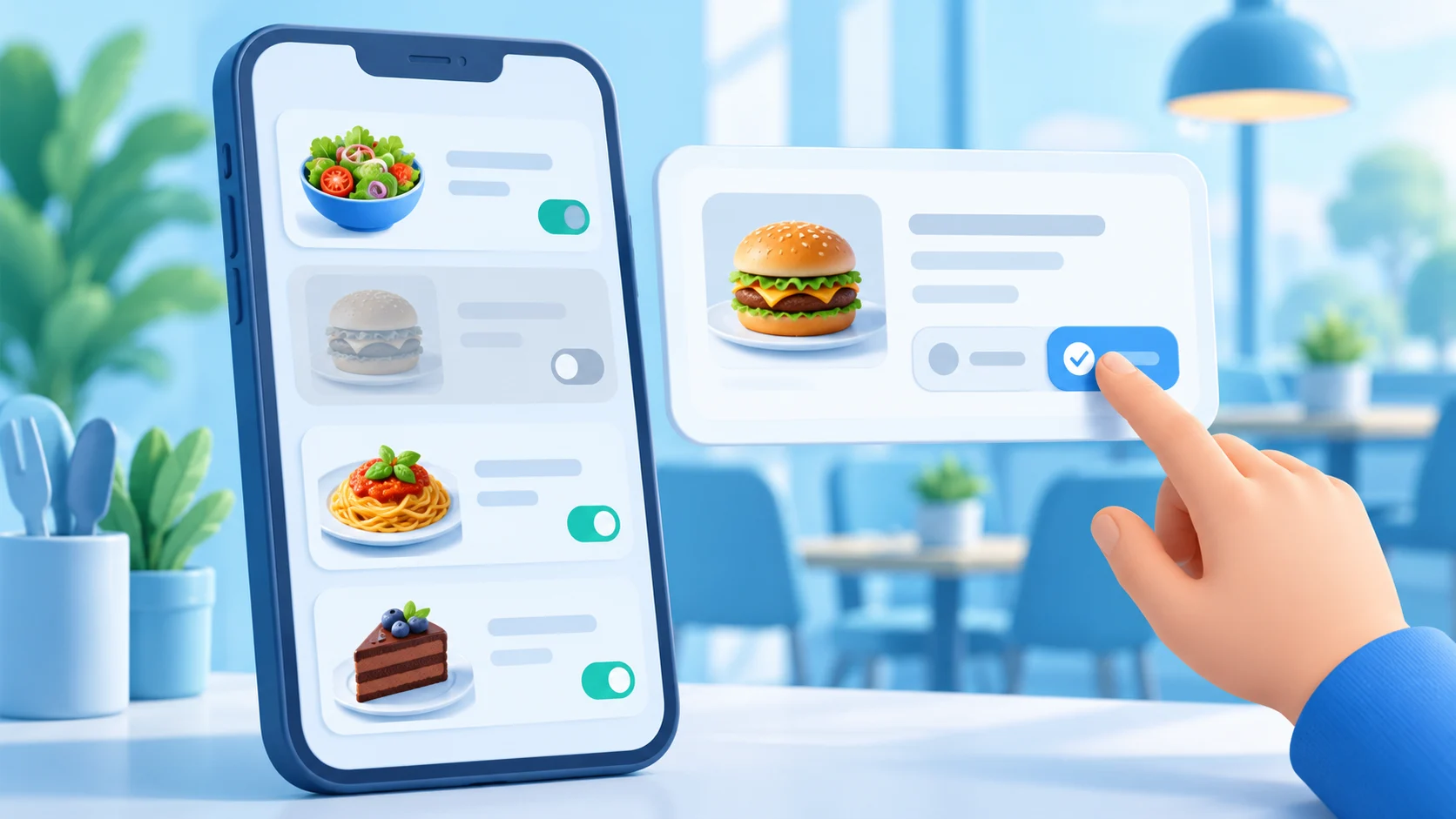
ADMAL’s Menu page guide describes a Visual Menu with up to three named PDF links and a gallery of up to ten images. That limit comes from the current ADMAL User Guide; it does not mean that every menu should use all available image slots. Choose the images that answer a real visitor question. If a full menu already lives in a maintained PDF, test the file on a phone and label the link so a visitor knows what opens.
Write the detail the image cannot carry
Use concise descriptions for details that affect a visitor’s choice: what the item is, what is included, which variation is selected, or how to continue. Do not rely on a photograph to communicate ingredients, allergen information, service conditions or product specifications. Confirm those statements with the person responsible for the menu; a general editorial example is not a substitute for the business’s own approved wording.
For a café with two similar pastries, for example, a real photo may help visitors recognize each one, while a short label identifies the filling or preparation that the café has confirmed. The example illustrates a layout decision only; it does not describe a real ADMAL customer or a verified menu item.
Pair each image with accessible context
Give each image meaningful alternative text when the publishing field supports it. Describe what matters in the image, not the keyword you want to rank for. If a photo is purely decorative and the surrounding text already gives the same information, do not make its alt text repeat the full menu description. Check that labels and descriptions remain understandable when an image does not load. W3C’s Images Tutorial explains how text alternatives should reflect an image’s purpose.
Keep the item name and important details in real text, not baked into the picture. This helps visitors read and search the information, and makes later corrections clearer. If a menu is bilingual, have a fluent reviewer compare the Arabic and English item name, description and link destination. Do not assume that a translated label automatically explains a different option.
Review QR menu images and text on a phone
Open the QR menu on a smaller screen. Check whether the first image helps identify an item, whether descriptions are easy to scan, and whether a link or PDF opens the expected file. If a visitor must zoom, scroll sideways or guess between similar items, simplify the image or rewrite the label. Ask someone unfamiliar with the menu to find one item without verbal guidance, then note where they hesitate.
QR menu image and description checklist
- Identify the visitor question each photo answers.
- Use current images that represent the actual item or service.
- Put important contents and conditions in verified text.
- Use a short, distinct name for similar choices.
- Keep essential information readable without the image.
- Write descriptive alt text where the publishing field supports it.
- Check Arabic and English names and destinations together.
- Test the full menu and any PDF link on a phone.
ADMAL’s broader guide to digital menus for products and services explains the available presentation formats. Use this review to decide what each item needs to communicate before publishing or updating its menu entry.
Use a consistent description pattern
A simple pattern makes a menu easier to scan across many entries. Start with the item name, then add the verified detail that distinguishes it. If a choice has a size, variation or included component, state that only when the business has confirmed it. Keep the first sentence focused on what the item is; move optional context to a second sentence only when it helps someone decide.
For a service entry, name the service and explain its confirmed scope in plain language. Avoid broad phrases such as “complete solution” when they do not tell the visitor what is included. If a visitor needs to ask a question before choosing, identify the appropriate contact action separately and make clear what happens after selecting it.
Check the image and the wording together
Review each pair as one piece of information. Does the photo show the same option named in the text? Is the image current, or does it show an older package, label or presentation? Does the description clarify something the photo cannot show? If the wording and picture disagree, correct the source before sharing the menu. A caption should not be used to excuse an inaccurate image.
Use the same review for image crops. A close crop can hide a component or make two options appear identical. Check the actual thumbnail and the opened image on a phone. If a visitor must infer a difference from colour, angle or decoration alone, add a short verified label rather than expecting the image to carry the explanation.
Keep Arabic and English entries aligned
When a menu is bilingual, compare one language pair at a time. Check the item name, confirmed contents, variation, action label and any linked PDF. Do not translate a description word for word if the result becomes unclear; preserve the same verified meaning in natural wording. Have a fluent reviewer confirm the pair, especially where a similar name could refer to a different option.
Give files clear language labels so visitors can tell which document they are opening. Open each link from the public page rather than relying only on the editing preview. Confirm that it leads to the current file and that the file remains readable on a phone. If the business replaces a menu file, repeat the link check before sharing the updated destination.
Recheck the menu when the offering changes
Images and descriptions can drift apart as a business updates its offering. Assign a person to compare the published menu with the current, approved source information whenever an item, presentation or service scope changes. Remove an outdated image, update the text, and check the other language and linked files in the same review. Do not imply that changing a menu entry also updates stock or availability in another system unless that connection has been verified.
Before publishing, ask a reviewer unfamiliar with the edit to find a specific item and explain what the visitor can expect from the wording. If they have to guess what the image represents or what the label means, the entry needs another pass. This short usability check catches unclear names, mismatched pictures and missing context before the menu is shared.