A long service list can be accurate and still be hard to use. Visitors need to identify the right category, understand what a service covers, and find the next contact step without reading every entry. Organizing a long services catalogue for mobile starts with the visitor’s questions, not with the order in which the business added services to its dashboard.
This approach can help a training provider in Abu Dhabi, a maintenance business in Dubai, a salon in Sharjah, or a home-services team serving Ajman, Fujairah, Umm Al Quwain and Ras Al Khaimah. Each business should group only the services it actually provides; a shared template cannot replace local accuracy.
Begin with the visitor’s question
List the questions people ask before they contact you: Which service fits my situation? What does it include? What information should I share? Who will respond? Turn the answers into meaningful groups. Use labels such as “For individuals” and “For companies” only when those audiences follow genuinely different service paths. If the distinction is the service itself, name that service instead of hiding it under “Other” or “More options.”
Read each label as someone who does not know your internal terminology would. “Advanced solutions” says little about what sits inside the category. “Air-conditioning maintenance” or “New-starter training” gives a clearer starting point. Use the business’s actual service names, and do not add entries merely to make the page look fuller.
Make a long services catalogue scannable on mobile
Phone visitors often scan headings before they read descriptions. Order categories by relevance to the page goal, then keep related services together. Keep labels reasonably short and make them distinct. Each entry should lead with the service name and follow with one concise explanation of its scope or practical purpose. Avoid turning every card into a paragraph.
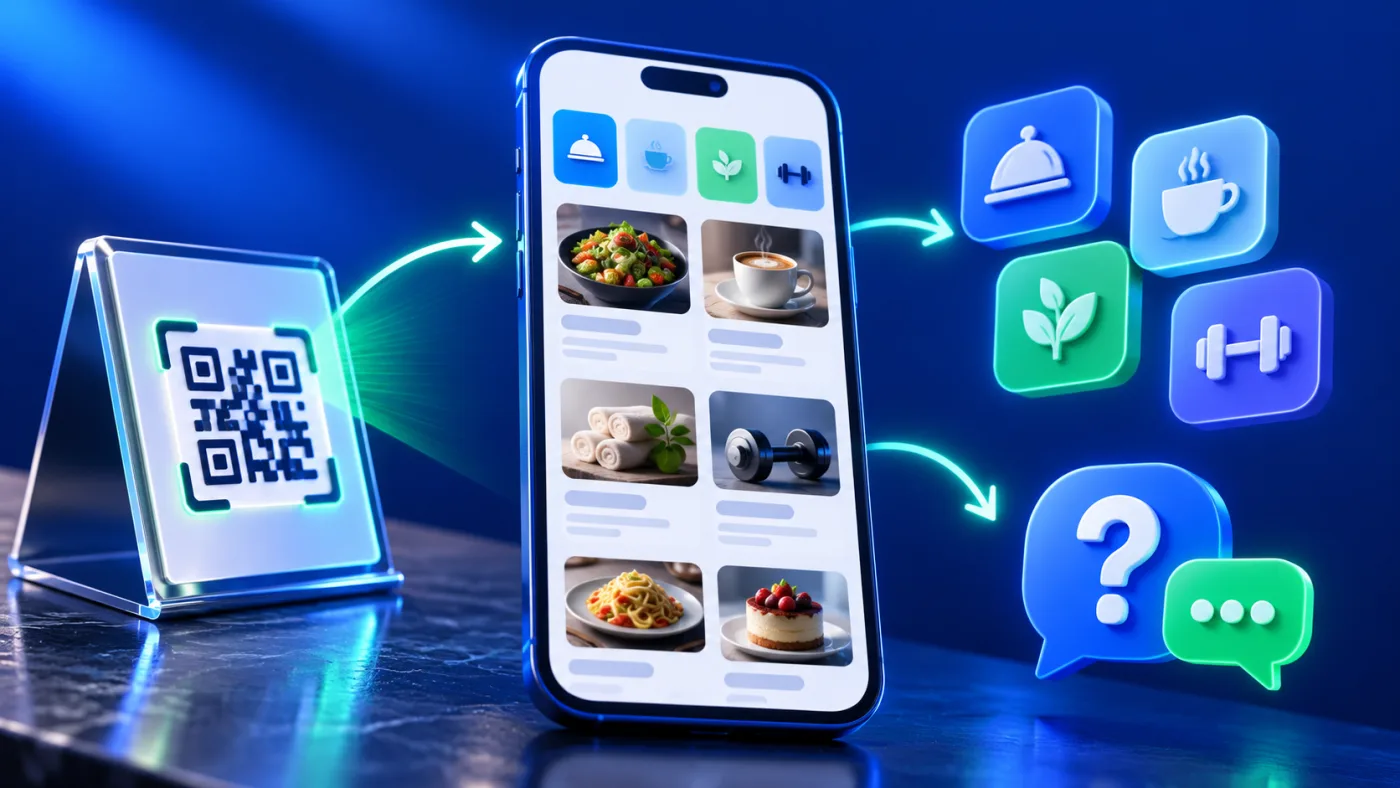
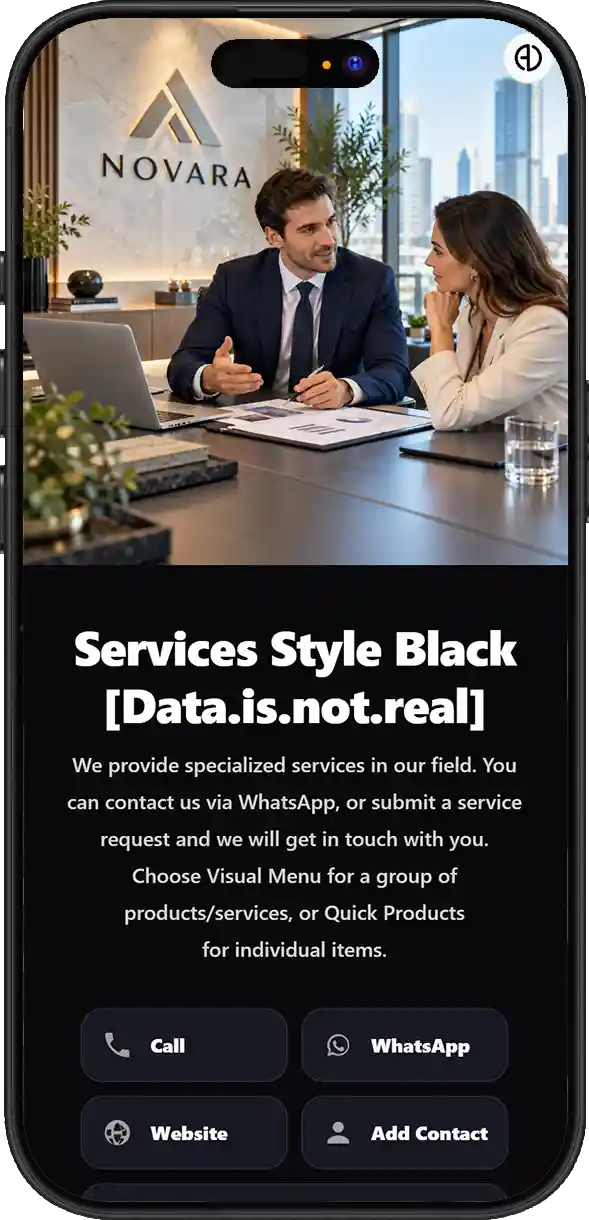
ADMAL’s User Guide describes two Menu formats. Visual Menu supports up to three named PDF links and a gallery of up to ten images. Quick Products exposes up to ten product entries. These are the supported content fields described in the ADMAL User Guide, not a recommendation to fill every slot. Choose the format that matches the information you actually maintain. A dense catalogue does not become clearer just because every possible field is filled.
Make each service description specific
Use a consistent editorial pattern: service name, intended audience, and next step. For example: “Initial network review — for a business investigating a connection issue — send the router type and service area to the support team.” This is an illustrative structure, not a claim about an ADMAL service. Replace it with the business’s verified scope and approved contact route. Avoid promises about response times or outcomes unless the team has confirmed them.
Remove duplication between the label and its description. If the heading says “Sofa cleaning,” use the description for useful context, such as a verified service condition or the information needed for an enquiry. Do not repeat the same phrase in slightly different words. Explain specialist abbreviations on first use or remove them if visitors are unlikely to recognize them.
Match every entry to a clear action
Some services need an information page; others need a WhatsApp or website link. Choose the action that fits the real workflow and label it so a visitor knows what opens. Opening a WhatsApp link does not mean a message has already been sent: the visitor still reviews the conversation and chooses whether to send. When an action opens an external site, test the complete destination from a phone that is not already signed in to the business account.
The broader article on digital menus for products and services explains ways to present menu content. This guide focuses on structuring a long service catalogue and writing each entry so people can scan it.
Test with a first-time visitor
Ask someone who did not help build the catalogue to find one specific service. Watch where they pause, which words they ask about, and whether they understand the next action. Avoid explaining the page during the test; the purpose is to identify confusion within the page itself. Record short observations and change one label or order at a time.
Repeat the check on a smaller phone and an ordinary connection. Open every PDF and link, check that filenames make sense, and confirm that files remain readable on mobile. Avoid uploads named “final 7” or images that add no context. Write useful alt text that describes the image’s purpose instead of repeating target phrases.
Review checklist before sharing
- Group services around visitor questions, not internal department names.
- Use precise, consistent service labels in both languages.
- Describe scope without unverified promises.
- Remove duplicate entries and services the business no longer offers.
- Choose Visual Menu or Quick Products to match the material you maintain.
- Test each link and action on a phone.
- Ask a first-time visitor to locate a service without verbal help.
- Review the page when a service or contact route changes.
A simple service-catalogue example
For a home-services team, group entries by the task a visitor recognizes, such as cleaning, maintenance or installation, only when those categories match the actual service list. Under each category, explain what the service covers, the verified areas served and which contact route to use. A training center might group by subject or learner audience, then link to a current course-information file where one exists. Keep the page informational: a contact action or PDF does not by itself create a booking or enrollment workflow.
For Arabic and English pages, have a reviewer compare each service name, scope and contact action side by side. Translate the intent rather than copying word order. If one language changes, update its pair and test both destinations so visitors do not receive conflicting instructions.
A useful catalogue does not need filler or exaggerated claims. It needs understandable categories, accurate details and a clear next step. When the service scope or contact route changes, review the copy and destinations so the page does not keep showing outdated information.