For a UAE restaurant or service business, a digital menu for products and services is a decision aid, not just a photograph of a printed sheet. Someone opening it from a stand or shared link may have only a few seconds. They should recognize the business, find the relevant section and know how to ask a question or continue. Start with the visitor’s task before preparing artwork or entering fields.
What should a digital menu help a visitor do?
A restaurant visitor may need to browse categories and find a dish. In a service business, visitors may need to understand what a treatment or package includes. With a small product range, a visitor may compare a few items before messaging. These journeys need different detail, but they share three essentials: understandable grouping, useful descriptions and a clear next step.
ADMAL’s public Menu setup guide shows core business fields, a Visual Menu mode and a Quick Products mode. It also describes contact destinations such as WhatsApp and a website URL. The actual fields displayed in your current editor are the ones to follow. Do not promise a separate checkout or order button for each entry unless your own live page shows it.
Digital menu: choose a format that fits the content
| Approach | Useful when | Check before publishing |
|---|---|---|
| Visual Menu | You need visitors to open a prepared document or browse menu images. | Readable pages, clear labels, public file access and current images. |
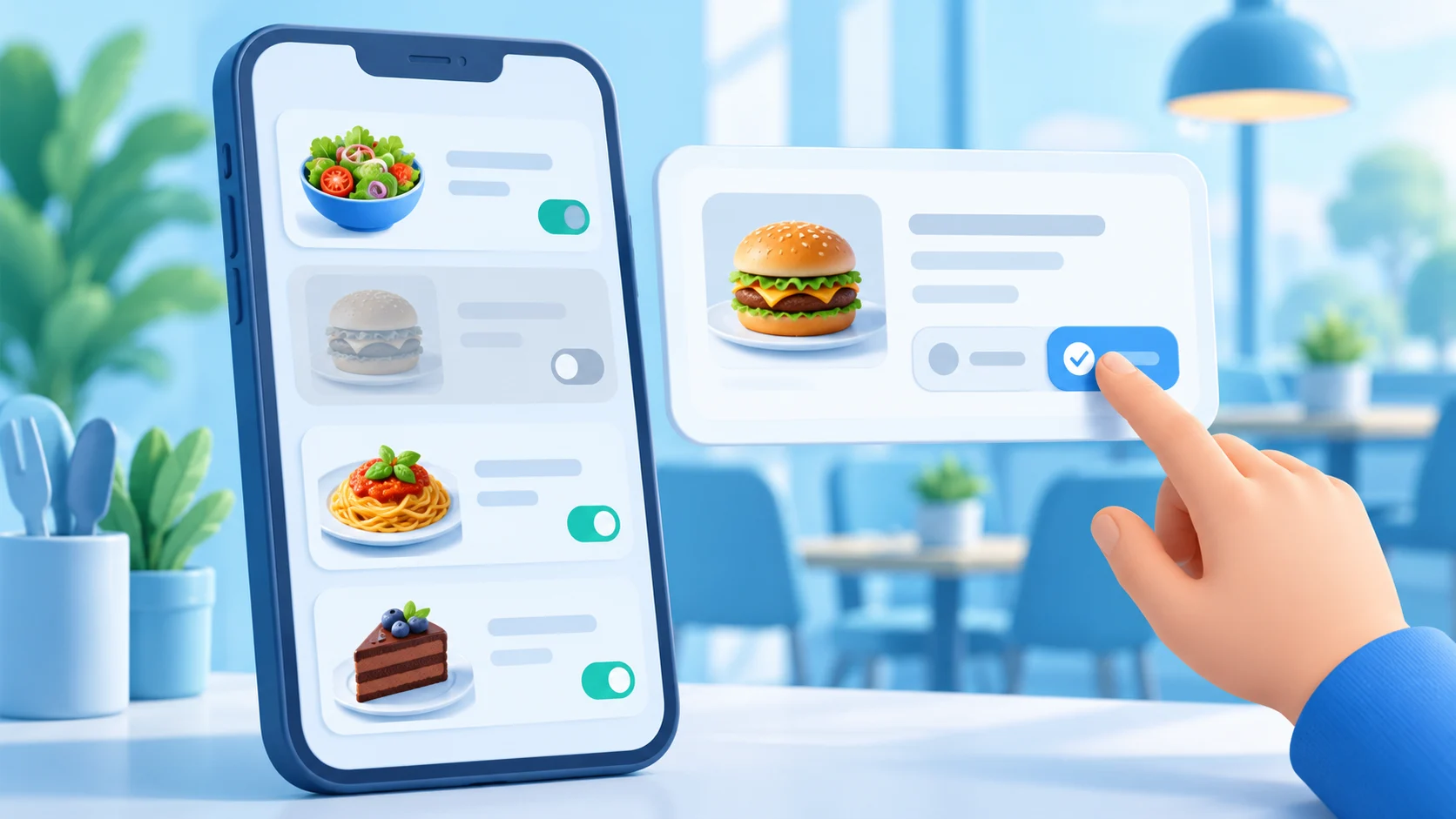
| Quick Products | You want separate entries with an image, name and description. | Useful item text, consistent imagery and a manageable order. |
| External action | The visitor must continue through a website or messaging destination. | The exact public URL and the action that works after the tap. |
The guide documents up to three named file links and a ten-image gallery in Visual Menu, and up to ten sequential entries in Quick Products in the inspected editor. Treat those as documented current editor limits, not a reason to fill every slot. A compact, maintained menu often serves visitors better than a long list of empty or outdated items. Confirm the available fields on your own item before collecting assets.
Organize items in a digital menu around visitor questions
Give each service a name that accurately describes it, then review the Arabic and English labels with the business owner before publishing both lists. Do not add hypothetical services or options that are not in the selected setup.
Illustrative example: A salon could arrange the service names and information supplied by its owner, then review each label before sharing the page. This example does not establish a specific service or booking feature.
Use category names people would choose without explanation. “Breakfast,” “Repairs” or “Consultations” tells more than an internal department code. Put the most requested or time-sensitive information near the item it qualifies. State what an item is, what it includes and any important condition you can verify. Avoid claims about suitability or outcomes that the business cannot support.
- One clear name: use the name staff will recognize when a visitor calls.
- One concise description: explain the difference from neighboring options.
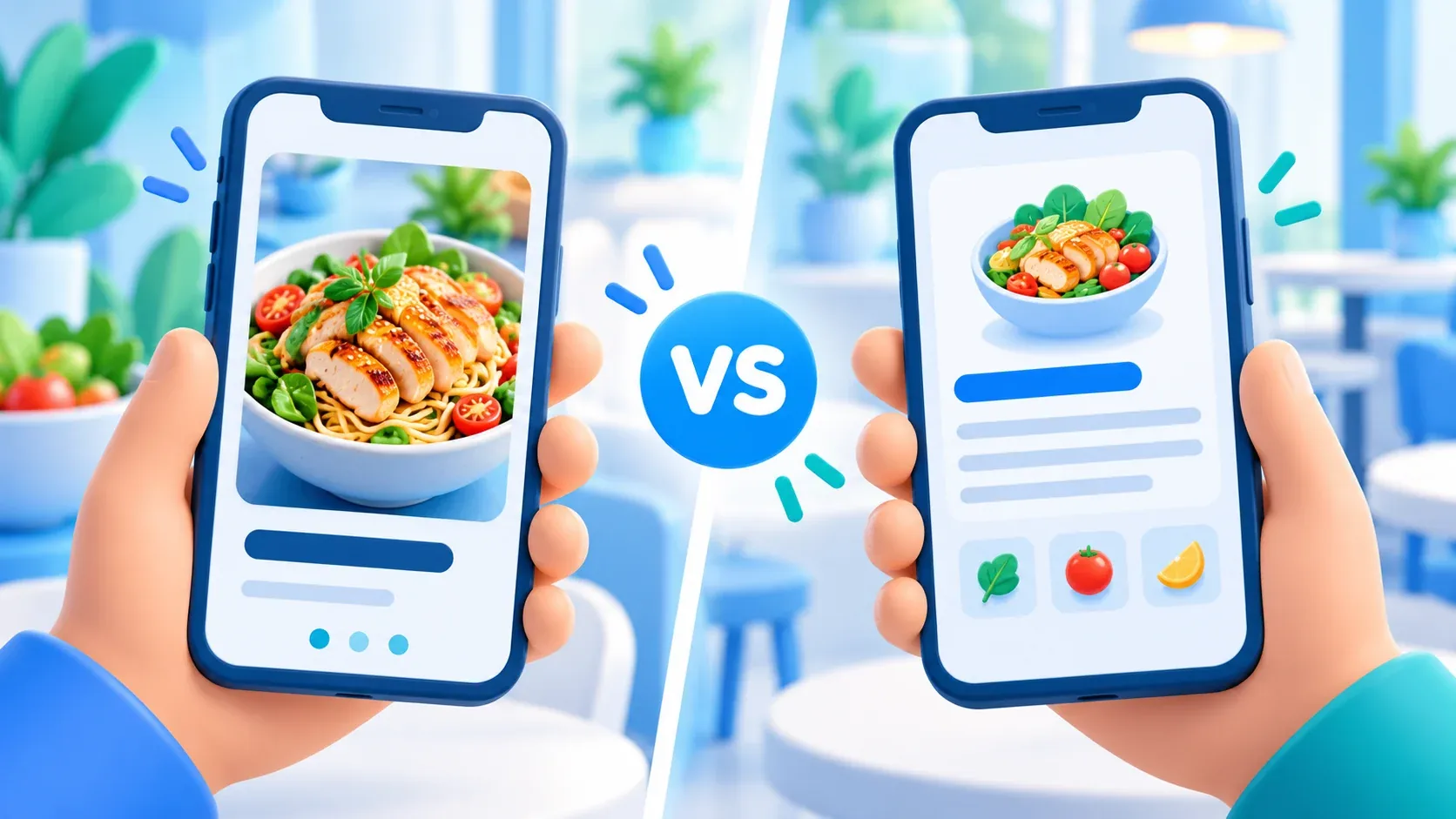
- A matching image: show the actual type of item or service, with readable cropping on a phone.
- An honest status: remove or revise entries that are no longer offered.
- A useful action: label a message or website button for what really happens next.
If a visual menu is built from page images, zoom each image on a phone. Tiny text embedded in an image is hard to read and may be difficult for assistive technology. Where the editor permits real text, keep key names and explanations in text. A PDF should also open for a visitor who is not signed into your own account.
Prepare digital menu images and documents for a small screen
Choose a legible cover and make the page title match the business or menu visitors expect. Crop photographs so the subject is visible in a narrow column. Keep important text away from the edge of an image; a style may crop it. Use a consistent order across the gallery so someone can move through categories without guessing which image comes next. For menu text, check contrast as well as size. W3C’s WCAG guidance on text contrast sets a minimum ratio of 4.5:1 for normal text and 3:1 for large text, within the criterion’s scope.
For documents, use a label that describes the file rather than “Click here.” Open every public file URL from a signed-out browser. ADMAL’s link guide recommends copying the exact destination and testing access. A Drive or document URL that works only for the editor may fail for a visitor standing in front of a QR display.
Make the next action accurate
A menu page can present information without processing an order. If you want a visitor to ask about an item, use a contact action and say that it starts an inquiry. If your business uses another site to accept requests, link to its tested public page and make that transition clear. Do not call an inquiry an instant purchase or imply that an external system is part of the menu itself.
Where Exchange Contact Menu is available and enabled, the public guide says a button label appears and submissions can be followed through Exchange Contact and Address Book. Use that feature only if it fits the visitor journey and review the details you actually receive. A contact form is not proof that a request has been fulfilled; give the visitor a clear expectation for follow-up without inventing a response-time promise.
Six steps before sharing a menu link or QR
- Pick the purposeList what the visitor needs to compare and the next action you want to offer.
- Choose the modeMatch Visual Menu or Quick Products to the assets and entries you can maintain.
- Prepare contentWrite names and descriptions; select accurate images and public documents.
- Save and previewRead the complete page at a phone width and check image order.
- Test actionsOpen files, WhatsApp, website and contact routes from another device.
- Scan the QRConfirm the real public destination before printing or displaying it.
Product example: MODEL 01 – ACRYLIC NFC MENU STAND
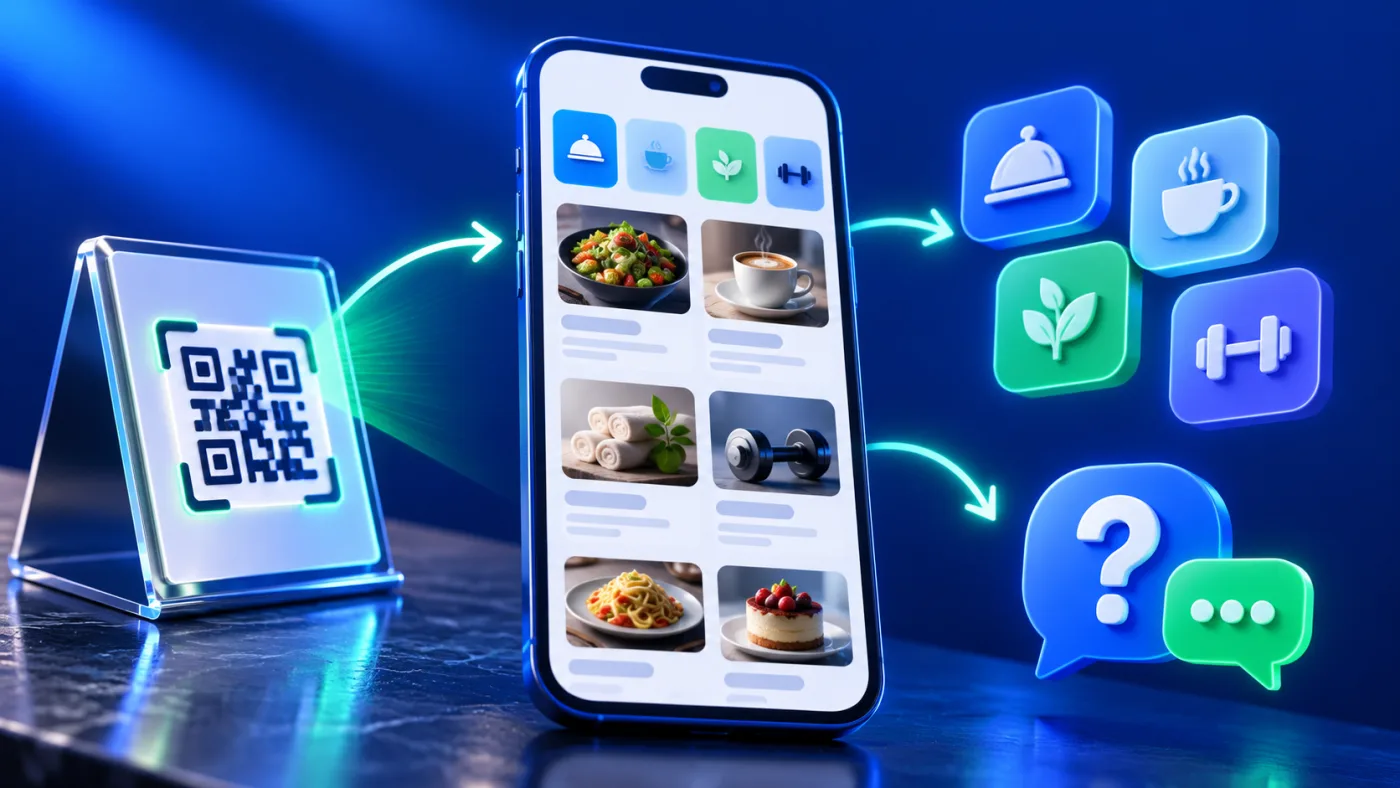
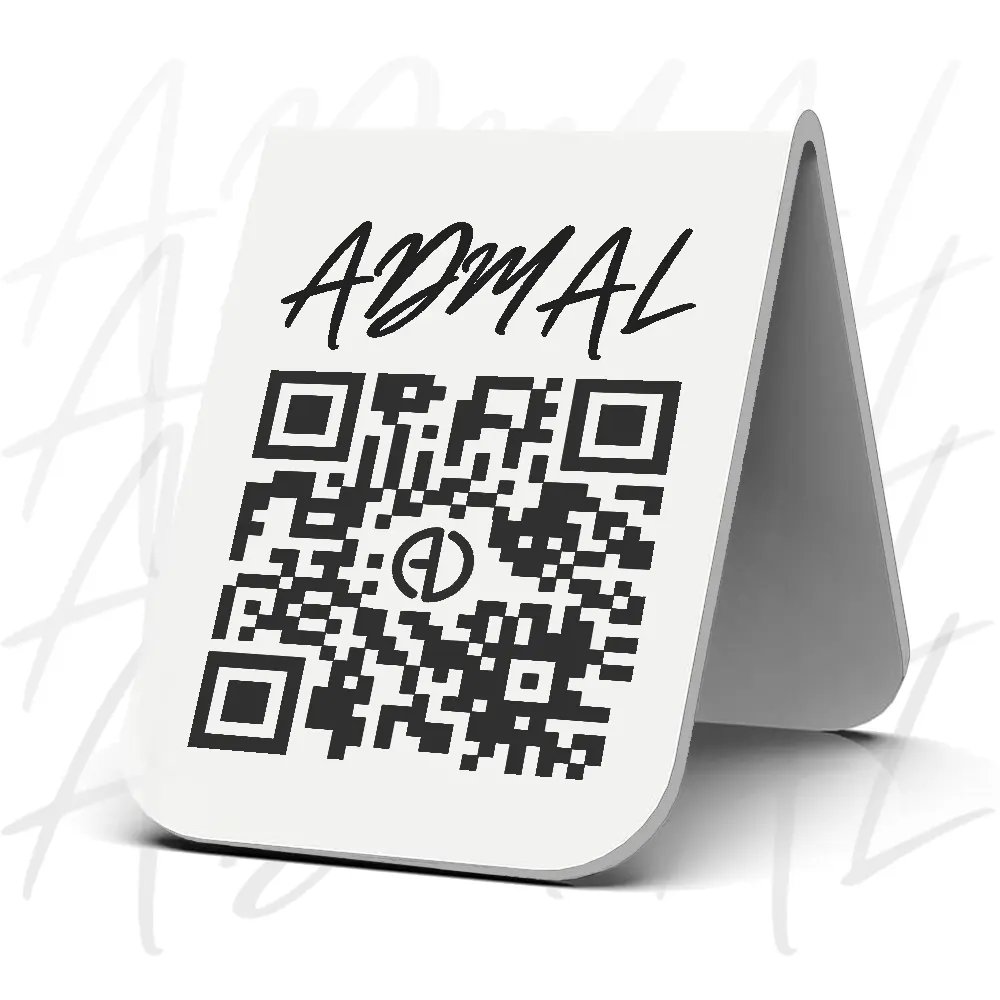
The current MODEL 01 listing describes a white acrylic stand with one static printed QR code and one NFC touchpoint. Its variation records list Small at 55 × 70 × 75 mm and Large at 70 × 90 × 100 mm (length × width × height). Use those dimensions to check counter space, then test the touchpoints separately: confirm the printed QR destination before production, and try NFC on a compatible phone. The listed product image shows the stand design; it does not prove a QR scan or a live menu journey.
ADMAL’s save, preview and test guidance emphasizes the live visitor page. Ask a person unfamiliar with your business to find one named item and complete the intended next step. Watch where they pause. A clearer category, shorter description or more visible action can fix a problem that the editor view did not reveal.
Maintain the menu after publishing
Assign someone to review the page when an item, service, document or contact destination changes. Update the source that the visitor actually opens. A printed QR can keep pointing to a digital destination, but its public experience is only useful while the linked content remains accurate and accessible. Test the QR again after a significant edit and check that any old file link has been replaced.
Frequently asked questions
What is the difference between Visual Menu and Quick Products?
Visual Menu presents prepared documents or images. Quick Products presents individual entries. Choose according to the content you can keep current, then verify the fields shown in your own editor.
Does a digital menu automatically take orders?
No. The page can show information and may lead to a tested contact or external destination. Check the actual action before describing it as an ordering route.
Can visitors open a document that I can see in my own account?
Only if its sharing settings allow public viewing. Test the exact document URL while signed out and on a second phone before publishing.
What must I check before printing a QR for the menu?
Open the live public page, read the content on a phone, test every action, scan a temporary QR from another device and confirm it reaches the intended menu.
How do the QR and NFC work on the MODEL 01 menu stand?
The listing specifies one static printed QR code and one NFC touchpoint. Confirm the QR destination before production because the printed code is static. The product listing says the NFC destination can be changed locally by the owner. Test both routes separately on a compatible phone.