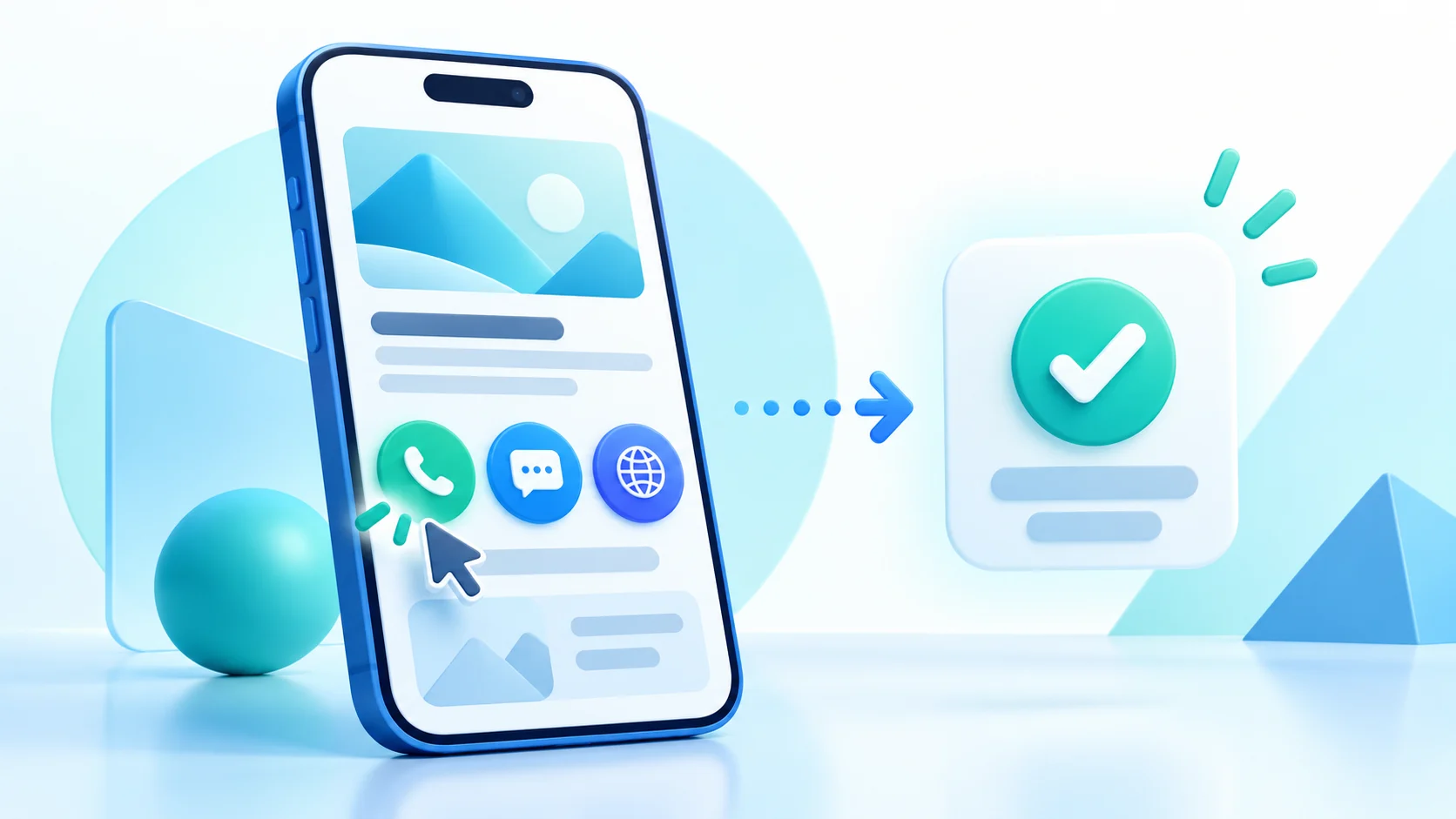
A contact button on a digital service page should tell the visitor what will happen next. Clear digital service page contact buttons help someone choose between a call, a WhatsApp conversation and a website visit without suggesting that a message or request was already sent. Label each action by its real destination, test the link, and explain any step the visitor must complete after it opens.
This guide is for UAE businesses that present services through a QR-linked page or mobile menu. ADMAL’s current User Guide lists phone, WhatsApp and website fields for menu pages; it also describes Exchange Contact as a separate way to receive visitor details. This article focuses on direct action labels and the visitor’s next step, not on collecting or managing contact records. Before sharing, test each contact button and confirm its phone, WhatsApp or website destination.
Choose the purpose before adding a button
Start with the question a visitor is likely to have. Do they need a brief conversation, a written message, or more information on another site? Pick the destination that actually serves that task. If there is one clear next step, give it visual priority. If more than one action is useful, explain the difference instead of showing several buttons with the same vague wording.
A phone action may suit someone who wants to speak with the business. A WhatsApp link may suit a visitor who prefers to compose a written message. A website link may provide details that do not fit on a short service page. These are choices to test with the business’s own process; they are not guarantees that a visitor will contact or receive a response.
Write clear labels for each contact button
Use a short verb and name the destination or outcome. Labels such as “Call the team,” “Open WhatsApp,” or “Visit the service website” make the next step easier to anticipate than “Click here” or “More.” Use a label only when it accurately describes the linked destination. A button should not promise a confirmed appointment, completed request or immediate reply unless the destination and process truly provide it. For links, the W3C WCAG guidance on link purpose says visitors should be able to determine a link’s purpose from its text or its context.
Keep the action text specific to the service page. If a business has more than one phone number or website destination, identify which one the visitor will reach. Avoid button names that imply staff will call back when the link actually opens a messaging app. Put supporting context next to the control, not inside a long button label that becomes difficult to scan.
Explain what a tap does and what it does not do
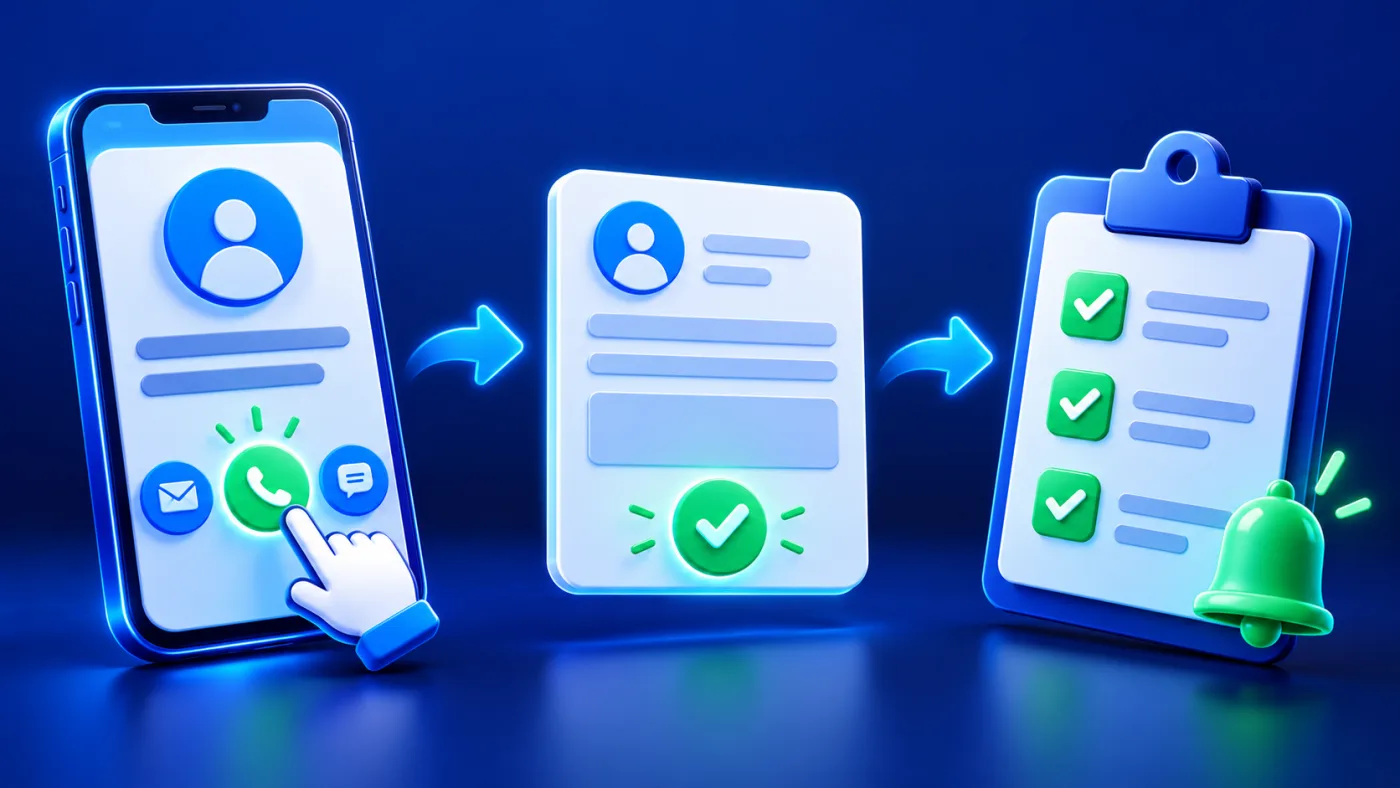
Opening a phone link may bring up a dialer; the visitor still decides whether to place the call. Opening WhatsApp may bring up a chat or message composer; the visitor must review and send the message. A website link takes the visitor to the destination, but it does not by itself submit a form or confirm a service. The exact transition can vary by device, application and browser, so test the link in the way visitors will use it.
Make this distinction visible when confusion is likely. For example, a note beside a WhatsApp action can say that it opens a chat for the visitor to complete. Do not describe a tap as a submitted enquiry, a delivered message or a completed booking. Those outcomes require an additional action or confirmation that the page may not receive.
Keep direct contact separate from visitor-detail forms
A direct phone, WhatsApp or website action sends the visitor to another communication destination. A form or Exchange Contact flow may instead ask the visitor to provide their own details. These are different tasks and should not be presented as interchangeable. If a page uses a form, explain what information it asks for and what the visitor should expect after submitting it.
ADMAL’s menu guide lists Exchange Contact separately from phone and external URL fields. These actions solve different tasks. If the business wants to collect visitor details, check the current setup and explain the form. For that separate workflow, read Capture Customer Inquiries and Follow Up. This article stays focused on direct links and what visitors see after tapping.
Check the destination before sharing
Open every destination from the published page, not just from the editing screen. Confirm that a phone number belongs to the intended team, the WhatsApp link opens the right conversation, and the website URL loads the correct service information. Remove outdated paths and check that external links use the complete destination the guide requires.
If a URL contains prefilled text, inspect it for the correct language, business name and requested context. Do not include personal data or a promise that staff have not approved. Keep prefilled text short so the visitor can review it. If the link no longer works or reaches the wrong destination, correct it before sharing the page or its QR code.
When a contact action does not open correctly
Check the destination itself before changing the button wording. Confirm the phone value, WhatsApp destination or website address in the account editor, save the intended change, and reopen the public page. Test on a second device if available. If the destination still fails, provide a verified alternative contact route while the link is corrected. Do not leave a broken button labeled as the preferred way to reach the team.
Keep Arabic and English action paths aligned
Compare the Arabic and English versions as a pair. The labels do not need identical word order, but they should describe the same destination and next step. Check the telephone number, WhatsApp URL and website target in both language versions. A translated label is not sufficient if it points to a different team or outdated page.
Read the full action aloud in each language: the button text, the nearby instruction and the page that opens. If the page is in Arabic but the linked website or message prompt unexpectedly switches language, decide whether that is intentional. Make the choice clear and test it again on a phone.
Test each contact button on a phone
Use the public QR or page link on a phone. Open each action, confirm the destination, and stop before sending a message or placing a call. This checks the visitor experience without contacting the business. Ask a second person to explain what they expect to happen after tapping. If their expectation differs from the actual destination, rewrite the label or the nearby explanation.
Repeat the check after changing a phone number, web address, language version or button label. If staff update a destination in one place, do not assume that another page or printed code has also changed. Track each published route that matters and verify it independently.
Digital service page contact-button checklist
- Choose one main next step for the visitor’s task.
- Name the real destination in clear, short action text.
- Distinguish calls, WhatsApp messages, websites and visitor-detail forms.
- Explain any extra visitor action, such as pressing Send or Call.
- Open every link from the public page on a phone.
- Check that Arabic and English labels lead to matching destinations.
- Remove outdated links and wording that promises an unverified result.
- Repeat the test after a destination or page change.
The ADMAL User Guide for menu setup documents phone and external URL fields. The digital menus guide explains how menu pages present information and actions. Use the current account editor and the published destination as the final source for what a visitor can do.