When a menu item is temporarily unavailable, a visitor should not be left guessing whether it can still be requested. Keeping a digital menu availability accurate requires a simple human review: confirm the change with the responsible team, update the visitor-facing information, and test the result on a phone. Do not assume a QR page is connected to live stock or that an item disappears automatically.
This guide is for UAE cafés, restaurants and service teams that publish a menu or item list. ADMAL’s current User Guide describes the fields shown for its menu formats; it does not document an inventory feed or a live availability control in the reviewed menu field list. Treat availability as a process the business must verify unless its own account and separate system prove otherwise.
Decide what “unavailable” means to the visitor
A team may use “unavailable” for several different situations: an item is gone for the day, a service is paused, a particular variation is not offered, or the menu itself is being updated. Those states mean different things to a visitor. Agree on the message before changing the menu. Avoid a vague label if it does not tell the visitor whether to choose another item, contact the business, or return later.
Keep the wording within what the team knows. If nobody can confirm when an item will return, do not promise a return time. If the business has not confirmed an alternative, do not present one as equivalent. A short, factual notice is more helpful than a confident guess.
Set one person to confirm changes
Choose a responsible role for receiving availability updates. It could be the person supervising the menu or the team member authorized to publish changes; this is an operational choice for the business, not an ADMAL account feature. Give the reviewer one clear source to check, such as the current approved item list from the person managing the service.
Before editing, confirm the item name, which language version is affected, whether the change applies to every location or only one, and when the notice should be reviewed again. If a business has several locations, do not copy a local change across every branch without confirmation. A note with an internal item reference helps the editor find the correct entry without exposing internal codes to visitors.
Update the visitor-facing entry deliberately
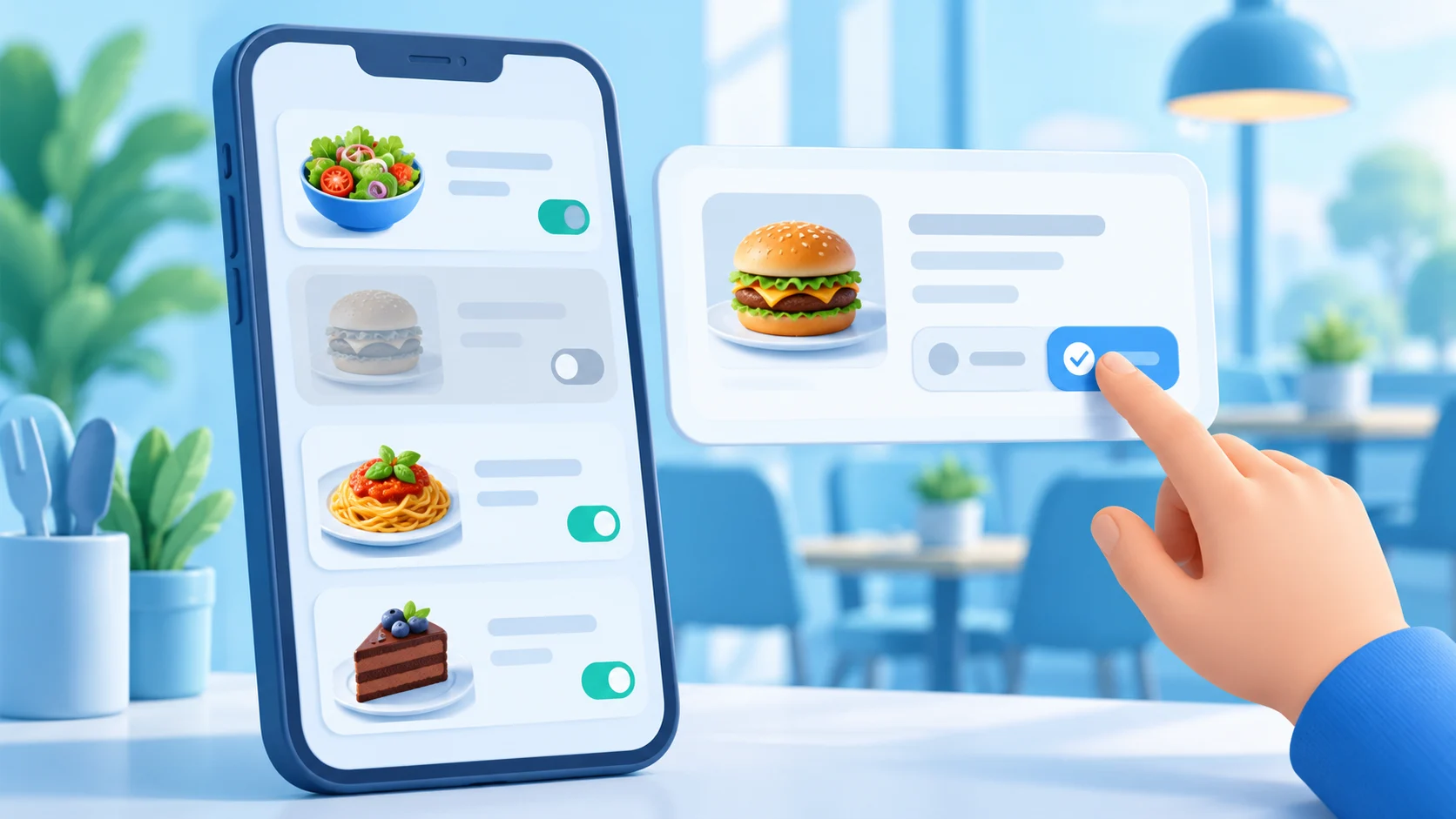
Pick wording that matches the confirmed state. The business may temporarily label an item as unavailable, remove it from a visitor-facing list, or replace a document that contains an outdated entry. Choose only an action supported by the editor and appropriate to how visitors use that menu. The message should stay clear if a visitor sees a QR code later or opens a saved browser tab.
The ADMAL User Guide describes a Visual Menu with named PDF links and images, and a Quick Products format with item information. Its reviewed field list identifies image, name and description for each item, but does not document an availability toggle or a live inventory connection. Check the current guide and the actual account editor before relying on a specific control. If the interface does not provide a verified availability state, manage the displayed text or list manually and verify what visitors see.
Do not assume that updating one digital menu also changes a printed menu, another QR page, a social profile, or an external ordering system. Make a small destination list of every place the business actually uses, then assign a separate check for each. This prevents an updated page from creating false confidence about other channels.
Use a digital menu availability review routine
Make the digital menu availability review repeatable without promising constant monitoring. A practical routine can be:
- Receive a change from a person authorized to confirm it.
- Match the report to the exact item and applicable location.
- Agree on the visitor-facing wording and whether it needs a review date.
- Update the published menu or file using the verified controls.
- Open the public destination and confirm the message appears correctly.
- Check the other language and any linked file or action.
- Record who confirmed the change and who completed the page check.
Set a review point that fits the business’s real operating schedule. If an item is expected to return soon, set a time for the team to recheck it. If the status changes again, update the notice; if no one can confirm the new state, keep the wording neutral rather than leaving an old promise visible.
Check both language versions of the digital menu
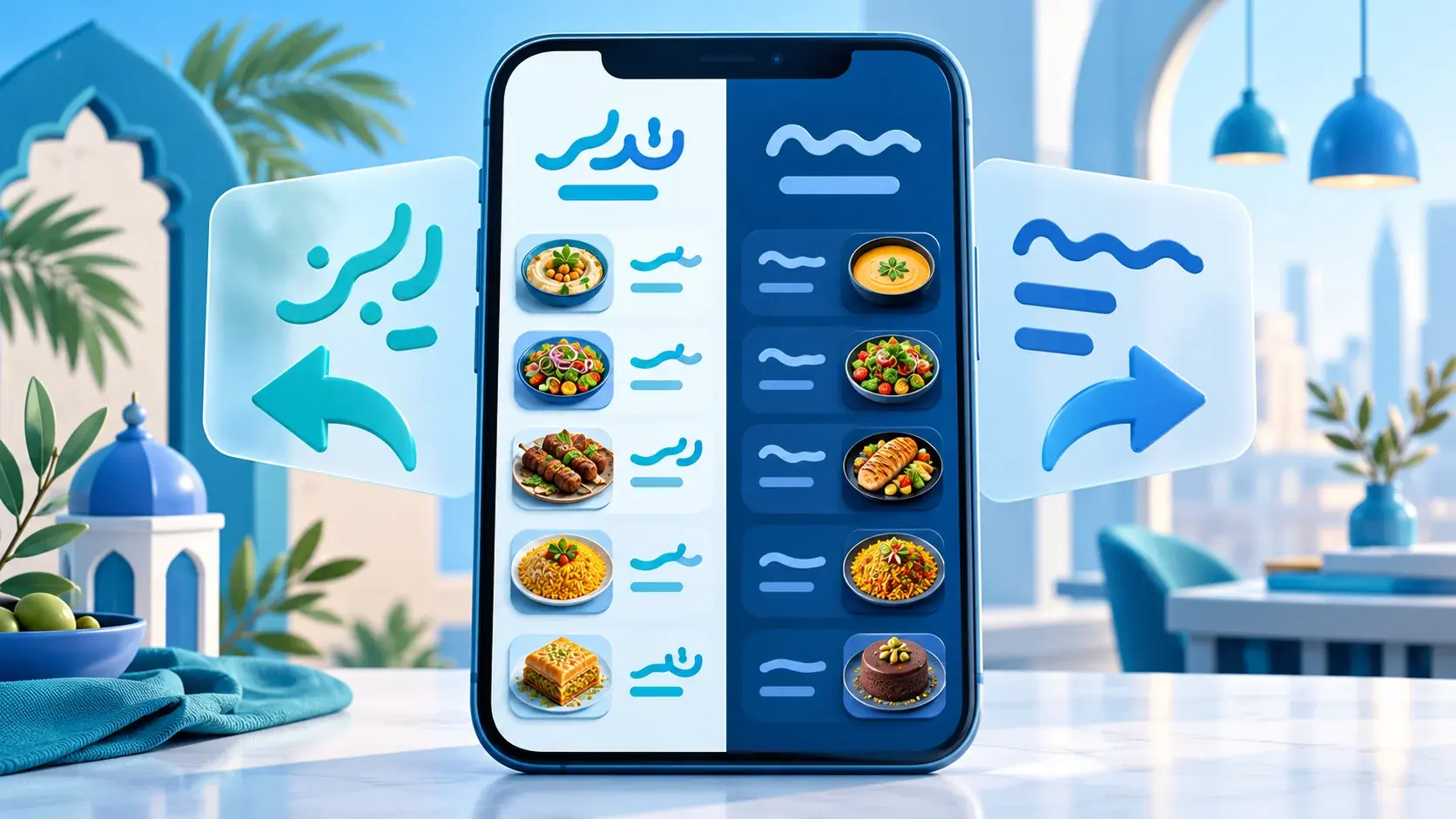
A change may be made in only one language by mistake. Compare Arabic and English versions, including their item names, short notices, images and linked files. Do not translate an availability message word for word if it becomes ambiguous; preserve the confirmed meaning in natural language. If the menu is represented by a PDF or image, check that the file itself has also been reviewed, not just the surrounding page.
Follow each relevant path from a visitor’s point of view. Scan the QR code, open the public page, choose the language, and check any contact action. If a link sends a visitor to WhatsApp or a website, confirm that the destination is current and that its text does not contradict the menu. Do not claim that a message or order was sent merely because an action was tapped.
Avoid common stale-menu problems
- Leaving an item visible with no note after the team confirms it cannot be provided.
- Removing an item from one language but not the other.
- Changing a description without checking the image or linked document.
- Using an old return date after the team’s plan changes.
- Copying one location’s temporary update to other locations without confirmation.
- Assuming a visitor page updates a separate system or printed material.
- Using a generic “temporarily unavailable” label without stating what the visitor can do next.
These checks prevent avoidable confusion; they do not guarantee that a visitor will see a change instantly in every browser, cached copy or external channel. Test the public page after each confirmed edit and tell staff where the current source of truth lives.
When the change cannot be confirmed
If two staff members give different information, pause before publishing a specific status. Ask the designated person to confirm which source is current and whether the change applies to the item, the whole menu or one location. Until that check is complete, remove any statement that may mislead visitors and use a neutral contact instruction only if the destination is verified. Do not publish a guessed return time or describe an unconfirmed substitute. Record the unresolved question for the team, then recheck the public page after the responsible person provides a clear answer. A short delay in updating is easier to correct than a confident statement that sends a visitor to the wrong choice.
Digital menu availability checklist
- Confirm the exact item and affected location.
- Use a current source from the responsible team member.
- Choose a message that does not promise an unverified return or substitute.
- Use only controls confirmed in the live editor.
- Review Arabic, English, images, PDFs and contact destinations.
- Test the QR route on a phone after the update.
- Check other channels separately; do not assume they are synchronized.
- Set a realistic review point and record completion.
ADMAL’s User Guide for menu setup documents the current Visual Menu and Quick Products fields. The broader digital menus guide explains the available presentation formats. For item-level clarity, see the guide to menu images and descriptions.