Preparing NFC business card artwork for use in the UAE starts with accurate details and a layout suited to the physical PVC card. First, confirm each name and contact detail for both sides, including Arabic and English spelling when both appear. Check the UAE country code and any branch details carefully. If the design includes a printed QR code, open its destination before approving the proof. This guide shows what to prepare, how to review ADMAL’s proposed artwork, and which product-specific print requirements to confirm.
ADMAL’s current Matte PVC NFC Business Card listing describes a matte PVC card measuring 85.6 × 54 mm and 0.8 mm thick, with UV printing on both sides. It lists possible artwork such as a logo, name, contact details, brand identity, QR code or approved artwork. These details apply to the live product listing. The listing does not state the accepted production-file format, bleed, safe area, minimum type size, colour profile or QR dimensions. Ask ADMAL to confirm those requirements for your selected design before preparing final artwork.
Plan NFC business card artwork for use in the UAE
Before opening a design app, write one sentence describing who will receive the card and what you want it to help them do. That purpose keeps the NFC business card artwork focused: you might introduce a sales representative, make a contact route easy to find, or identify a business. Then decide what belongs on the physical card and what can remain on the digital page.
Prepare a short list of verified details: the exact spelling of each name, a role if it is needed, the company name, the contact route you intend to share, and any address or URL. Check every digit, including the country code. For a team order, keep each person’s details in a clearly named file. This makes it easier to spot a name or phone number attached to the wrong design.
Do not use both sides simply because they are available. Prioritize a few items. One side might identify the person or brand; the other might carry a contact detail or QR code. That is a content-planning suggestion, not a fixed template or a promise that every element will remain readable at the size you imagine. Review the layout in ADMAL’s proposed design before approving it.
Send artwork that can be reviewed
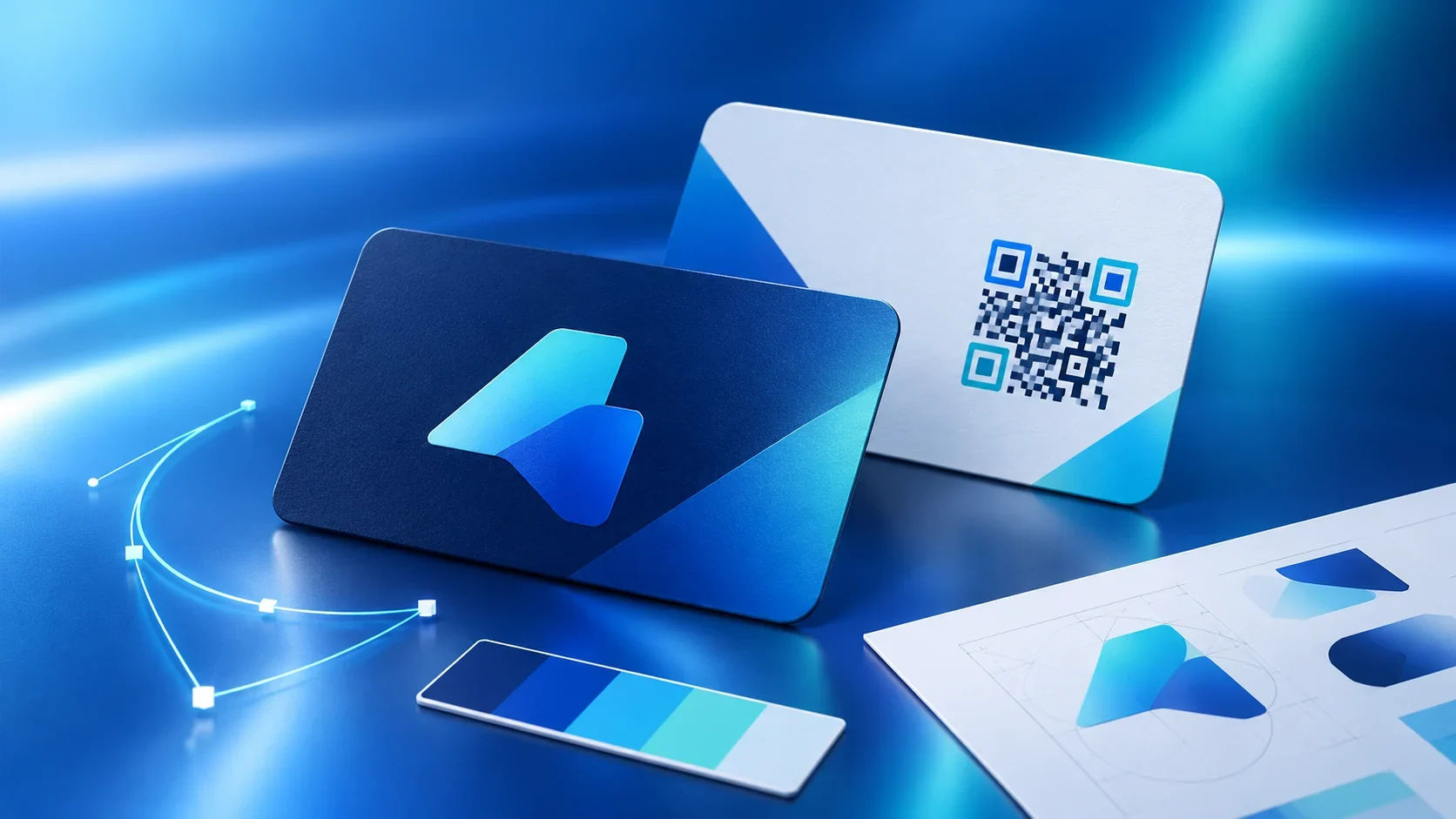
Provide the clearest original logo you have and identify the approved light or dark version, if your brand uses one. A vector logo stores its shapes as paths, so you can resize it without making the design pixelated. A raster logo stores pixels and may lose clarity when enlarged. Adobe explains this difference in its guide to raster and vector files.
If you do not have a vector logo, do not rename a small image as SVG or PDF and assume that it gained detail. Changing a file extension cannot restore information that is absent from the original. Send the best source you have and ask the design team to review its suitability. If you have brand guidelines, include the relevant page for logo use and colours. If you send several versions, say which one is current.
A reference image can also help. Explain what you want to take from it and what should not be copied. A reference is a communication aid, not a production file. Gradients, shadows and screen colours may not look the same in print, so review how the proposed artwork appears in the card preview.
Write the content for both sides first
Use a small table before the design is approved:
| Side | Possible content | Checks |
|---|---|---|
| Front | Logo and name or brand | Spelling, contrast and reading order |
| Back | A contact route or QR code, if selected | Correct link, branch and intended language |
This table is a starting point. The final layout depends on your order and the reviewed design. If you choose a QR code, open its destination yourself. Confirm the actual page, not just the business name. If the link is for a particular branch, check that branch before sending the details.
The product listing describes its printed QR code as static after production. Treat that printed destination as a manufacturing decision, not as a card label that can be edited later. If Google Reviews is the destination, use ADMAL’s pre-print Google Review link checklist. If the destination is not ready, ask ADMAL about options for the selected product before you approve the artwork. Do not use a test or generic link as a placeholder unless the final replacement process has been confirmed.
Confirm production requirements instead of guessing
Before preparing a print-ready file, ask ADMAL to confirm the requirements for this exact product: accepted file types, document dimensions, whether bleed or a safe area is required, small-detail limitations, colour setup, and how the front and back should be supplied. Do not copy a template from another card, stand or product family.
Adobe explains how bleed can extend artwork beyond a trim edge, but that general guidance does not define ADMAL’s requirements for this card. Do not add an assumed bleed measurement or crop the design to an internet template. Start with ADMAL’s current template or written instructions. If the design team asks for a PDF or vector source, provide the version that matches those instructions rather than converting files at random.
Keep copies of the assets you send. Use names such as name-logo-approved, card-front-copy-v2 and qr-destination-confirmed. Do not combine different people’s contact details in an unlabeled file. When you make a change, send the replacement with a short note describing what changed, so the reviewer can identify the current version.
Review UAE NFC business card artwork before approval
When you receive a design preview, compare it with your original content list. Check the name, role, company, phone digits and URLs. Then review the front-to-back order, contrast and edges as shown in the proof. If the QR code can be scanned in the preview, open its destination and confirm it. A QR scan from a screen image does not prove that the printed card works; inspect the finished physical item after delivery if you need to verify that physical route.
Put corrections in one clear message. Identify the current element, the exact replacement text or design, and which side it belongs on. Then review the revised proof as a whole. A small text change can affect spacing elsewhere, so do not assume that the rest of the layout remained unchanged.
Before final approval, confirm that you are reviewing the current version and that both sides, the supplied details and the intended digital destination are correct. Production fixes the printed information; digital-page content follows the settings available in its ADMAL setup. ADMAL’s article about physical branding and the digital page explains that distinction.
A short artwork handoff checklist
Before sending the design request, make sure you have:
- Names and contact details written exactly as they should appear.
- A clear logo and the approved brand version, if one exists.
- A suggested information order for the two sides.
- A confirmed QR destination, if you want a printed QR code.
- A visual reference with notes explaining what to use from it.
- A request for the current production template, file types and margins.
- A simple way to label files and track revisions.
- Time to review the proof before approving it.
Before you send the artwork, compare every name, number and destination with the current proof. Keep the NFC business card artwork focused on verified details, then contact ADMAL to confirm the product’s current file setup. This final check reduces preventable corrections while keeping printed information distinct from the content on the digital page.