A A print-proof checklist for a Google review display should cover more than whether a design looks attractive on screen. Inspect the item that will actually be used: is the message readable, does the QR code open the intended destination, is the finish suitable for the display location, and is the proof assigned to the correct branch? This is a general pre-production checklist, not a manufacturing specification for a particular item.
Google lets businesses share a review link or QR code from a Business Profile through its Help Center. Verify the destination, then match the physical proof to it. Dimensions, materials and the number of supported codes depend on the selected product; consult that product’s own information instead of inferring details from a category name.
Start the print-proof checklist with the destination
Before checking color or type, open the link that will be encoded in or placed beside the code. Confirm the business and branch. Then compare the digital proof with the approved work details: wording, logo, language, code position and file name or version number. If the destination changes after export, create a clearly identified new proof rather than relying on an old file saved in a conversation.
A physical proof checklist
| Check | Practical question | Acceptable before approval |
|---|---|---|
| Wording | Can it be read from the normal use distance? | Visitors do not need to interrupt service to read it. |
| Contrast | Do the code and text stand out from the background? | Key details remain clear in the location’s lighting. |
| Glare | Does reflection obscure the code or screen? | The code can be seen from the actual use angle. |
| Code boundary | Is there space around the QR code? | Text or decoration does not cut into the code area; follow the product or supplier’s artwork requirements. |
| Destination | Does the printed code open the correct profile? | The scan matches the intended branch or business. |
| Version | Is this the latest approved proof? | The team knows the version number and changes. |
| Placement | Can the display stand safely without blocking a route? | It does not obstruct payment, waiting or movement. |
These are practical review criteria, not engineering measurements. Do not use a fixed QR size, distance or print-area number unless it is confirmed in the product specifications and artwork instructions. If the product page does not define technical limits, ask the manufacturer before approving the design.
Test the code on the sample, not only on screen
Scan the printed sample with an available phone camera or reader, then open the destination and confirm that it belongs to the correct business. Repeat the check on a new sample if size, material, print, or destination changes. Test under lighting similar to the intended location, since reflection and color contrast can affect readability.
If something fails, separate possible causes: the destination file, exported artwork, print quality, glare or phone setup. Do not call the code “broken” before locating the failed step. Keep a short note such as “link is correct; scan is difficult under direct light,” and request a proof revision before approving a larger run.
Match the proof to the branch and location
For a multi-location business, keep an internal branch code or location name in the proof register. Do not confuse a test proof with the version ready for use. If the display is bilingual, check text direction, spelling and readability in both languages; do not leave a cut-off phrase or unreviewed translation in the available space.
Also decide who will recheck the display if it moves or the link changes. A correct code placed at the wrong branch can still confuse a visitor. ADMAL’s Google review link check before printing focuses on verifying the destination; this checklist focuses on the appearance and use of the physical proof.
Keep a short approval record
Record the business or branch, destination link, proof version, sample date, scan result and internal reviewers if needed. Do not add customer personal information to a print register. Retire older versions according to the team’s process so someone does not reuse an obsolete proof.
Finally, review the platform rules before displaying a public invitation: do not ask for a positive review or offer an incentive. Google explains the rules in its prohibited and restricted content policy. To compare display formats, see ADMAL’s review card versus review stand guide.
Test the proof where it is expected to be used
A card can look clear under office lighting yet become difficult to read near a bright window or reflective surface. Check it in conditions close to the intended display area and from a natural visitor distance that does not block other people. Look at text contrast, instruction size and code orientation. Enlarging artwork on a screen is not a substitute for inspecting the physical proof.
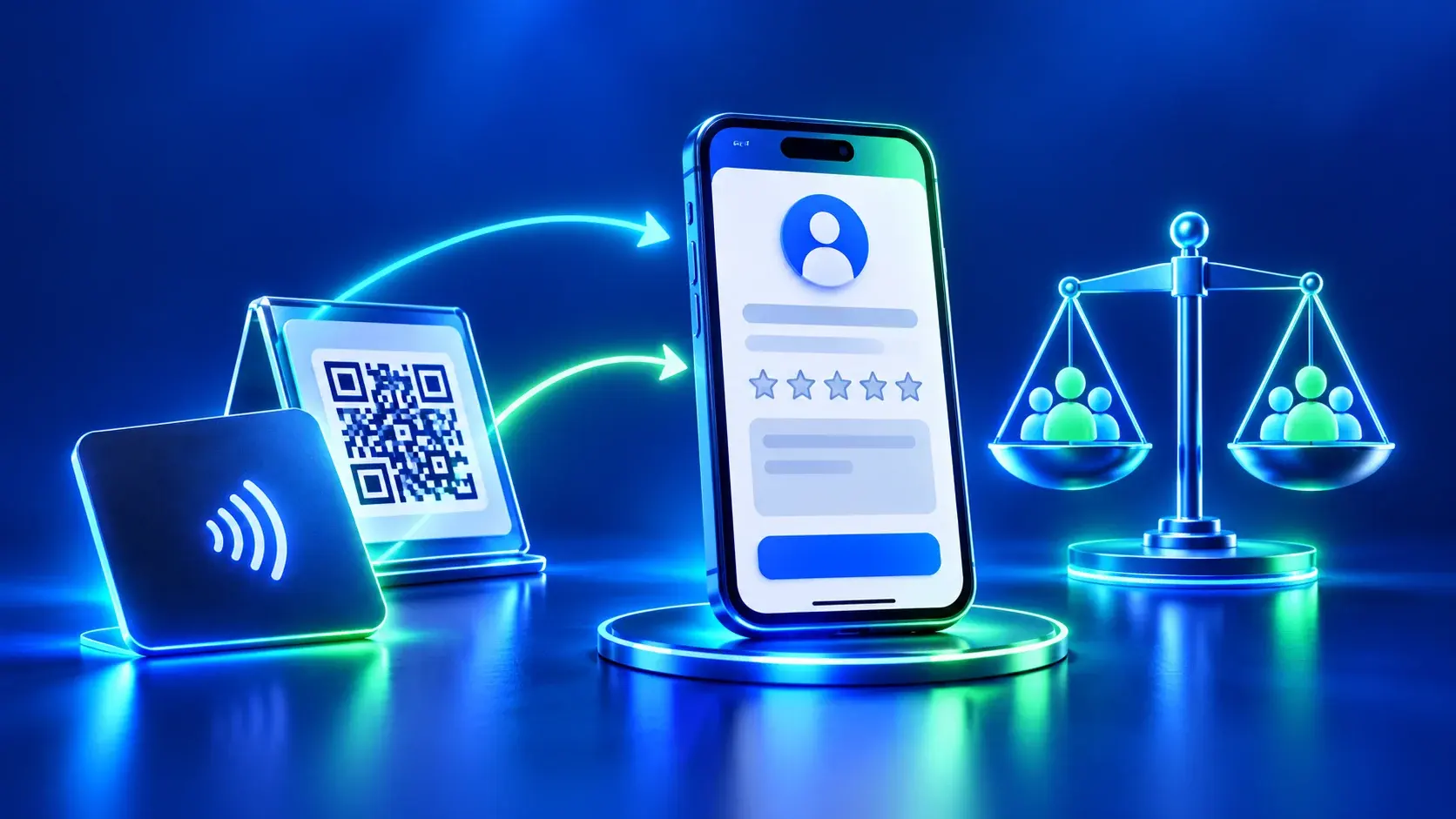
Scan the code from more than one angle and a normal use distance, then open the destination and confirm the branch name. If the selected product specifications include NFC, test that route separately from QR; the appearance of a card does not prove NFC is present. Record requested changes against one identified proof version, and request another sample when a change could affect readability.