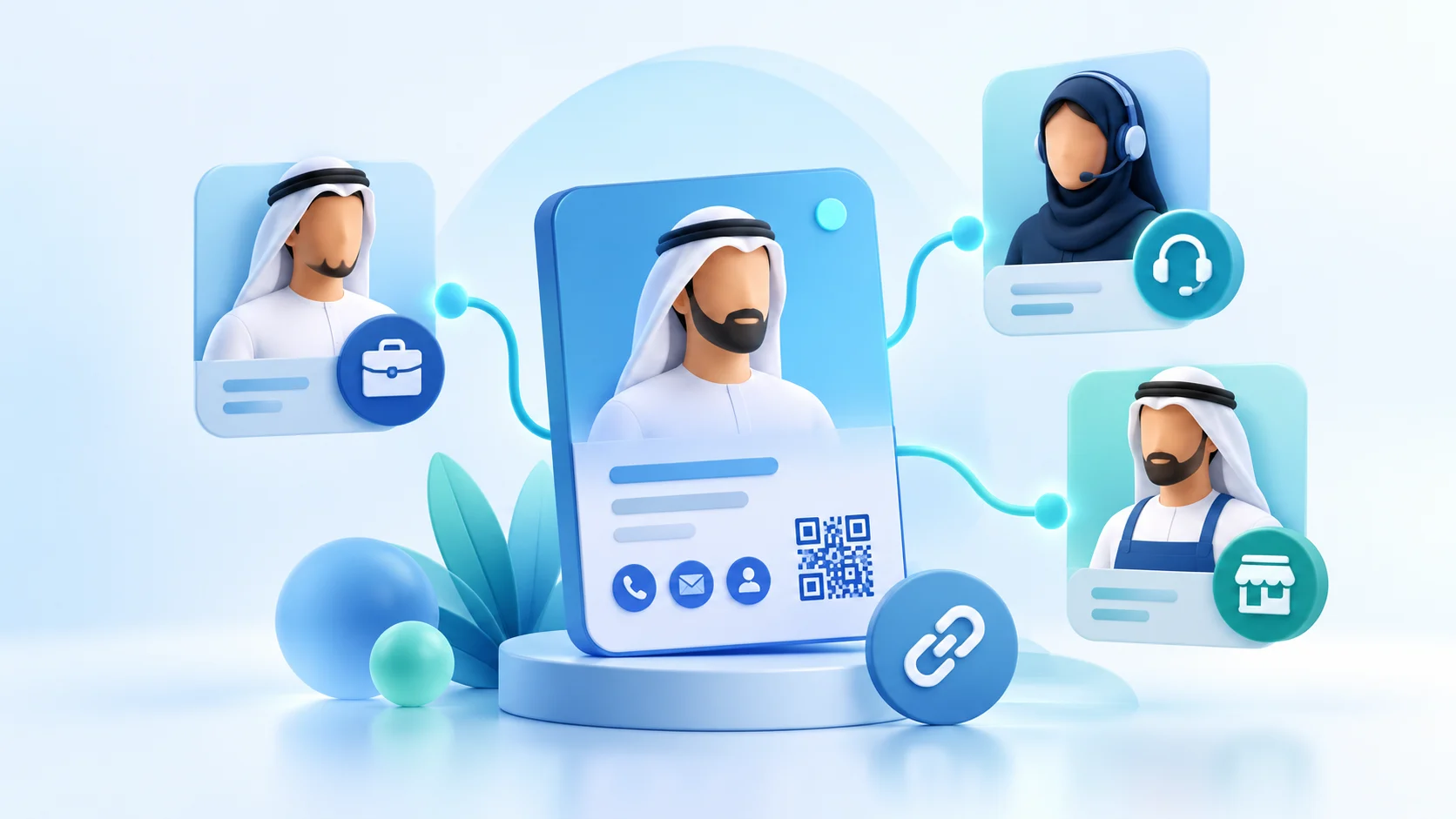

Managing team digital profiles starts with a simple visitor question: Who is this person and how do I reach the right team? Consistent design helps, yet copying identical text into every profile makes it harder to understand a role. Therefore, the company needs both a useful public page and an internal routine that keeps it accurate when people move, change responsibilities or leave.
Set a standard for team digital profiles
First, agree on how names, job titles, company descriptions and contact labels will appear. Choose approved photography and official social or website links. Then give each person a short role description that explains the work they actually handle. A visitor should know whether the action reaches that employee, a shared reception channel or another team. Avoid a button label that implies direct contact when it opens a general inbox.
The public ADMAL Profile / Business guide documents identity, description, contact, links, files and gallery fields in the inspected editor. Field visibility can depend on the selected style and account. The guide does not establish a particular multi-user approval or role-permission system; inspect the current dashboard before assigning editing rights. For UAE companies with teams across Dubai, Abu Dhabi, Sharjah, Ajman, Fujairah, Umm Al Quwain or Ras Al Khaimah, keep the approved company name consistent and list office or service areas only after confirming them.
Decide what belongs on a person page and a company page
| Content | Person profile | Company profile or shared destination |
|---|---|---|
| Identity | Name, actual role and professional context. | Business name, activity and official description. |
| Contact | Approved direct route when maintained. | Reception or central channel when appropriate. |
| Proof | Relevant experience or work links. | Services, official site and public business channels. |
| Owner of updates | Named employee and internal reviewer. | Named business content owner. |
This table is a content-planning tool, not a claim that ADMAL automatically connects these profiles. Choose the actual pages and products in the current account. If a physical card or stand is involved, confirm its specific destination and fixed printed information before production.
Assign a clear approval and update workflow
Record who supplies facts, who approves publication and who updates a page later. The employee can confirm name, role, photo and direct contact. A business reviewer can check brand wording and official links. Keep the approval record internally. Do not give public editing access based on a role name in an article; verify the account’s actual permission controls first.
When a role changes, update the public description and contact route. When someone leaves, review the page, linked QR or NFC item, shared inbox and any printed information. A printed QR is fixed after manufacturing, so confirm where it points and what a visitor will see if the person’s page changes or becomes unavailable. Redirecting or repurposing a destination requires checking the actual service and product setup.
Test every route as an outside visitor
Open several profiles on different phones. Check that each name, role and main action matches the intended person. Ask someone outside the team to find the correct contact for a realistic question. If they choose the wrong page, improve labels or navigation before adding more sections. The ADMAL link guide recommends testing complete public destinations; do not paste a profile handle where a URL is required.
If the team uses more than one language, review the actual text and destinations in each public view. A listed language skill is not a translated company message. Use the multilingual identity guide to check meaning and mobile direction.
A six-step rollout for team digital profiles
- Map the rolesList who needs a public page and what a visitor asks them.
- Set the standardAgree names, descriptions, imagery and approved contact labels.
- Confirm the setupCheck available account, page and product options before assigning work.
- Review each profileHave the person and business reviewer approve its public facts.
- Test the journeyOpen links, files, QR and NFC where applicable from another phone.
- Assign maintenanceRecord who updates each page after a role or contact change.
ADMAL’s save, preview and test guide makes the public visitor view the final check. Perform it for every person rather than assuming one approved template proves all destinations work.
What analytics can and cannot show about team digital profiles
Where analytics are available, a page open or tracked tap may show use of a profile. It does not prove that the intended employee received or answered a message. As a result, confirm submitted inquiries in the relevant channel or contact records. Compare similar periods if the team changes a page. Do not use an aggregate count to judge an individual without considering the role and distribution of their profile.
Frequently asked questions
Can every employee edit their own ADMAL page?
Do not assume a particular team permission model. Inspect the current account controls, then decide who can edit and who reviews public changes.
Should every team member use identical wording?
Use a common naming and brand standard, but write each person’s real role and correct contact route. Duplicated generic biographies confuse visitors.
What happens when an employee leaves?
Review the public page, links, contact actions and any linked printed card or stand. Assign an owner to correct or retire outdated routes according to the actual service setup.
Does a page tap prove the employee answered?
No. A tap is an interaction signal. Confirm the conversation in the channel where it happens or in submitted contact records.