Build a digital profile around the visitor’s question
Imagine someone opening your page after a meeting. They should be able to identify you, understand your work and reach the right next step without asking for a second link. Write those three answers before opening the editor. A profile for a consultant may lead to a call or portfolio. A company representative may need a role, approved brand details and a clear route to the business. The page should reflect the visitor’s task, not every field the editor happens to offer.
For a broader comparison of personal and business identities, start with our guide to digital identity for people and businesses; this article focuses on setting up and testing the page itself.
Choose one primary action for the first screen. Add a second action only if it serves a distinct need. For example, “View work” and “Contact me” can coexist; three buttons that all open the same homepage add little value. Use a name and role that a visitor will recognize. Keep the opening description concrete enough to distinguish the page from a generic contact card.
See a clearly marked demonstration: Open ADMAL’s English sample profile and look at what appears before scrolling: identity, short explanation and contact actions. The page explicitly says its data is not real. Its phone, email and other destinations are placeholders; do not use those buttons to judge whether a customer’s links work. Compare the order and labels with your own public page, then test your own real destinations separately.
Open the correct ADMAL Digital item
The official ADMAL User Guide starts by locating the existing item in My Cards or My QR. Open that item, then use the editing control shown there, such as Start Now or Form Settings / Edit. My Cards manages an identity linked to a physical product; My QR manages a digital QR item. Check which one you are editing before making changes so that you do not update the wrong public destination.
Keep the existing identity when correcting a phone number, image or URL. Creating a second QR merely to change one detail can leave older printed or shared links pointing to a different item. If the public page should pause while you work, follow the current account controls and test it again before enabling it. Do not delete an item as a substitute for a temporary pause.
Choose page type before visual style
ADMAL distinguishes Page Type, which controls the function, from Style, which controls presentation. The style guide asks you to choose the purpose first and judge the actual preview before applying a style. For a personal or business introduction, use the profile or business route shown to your account. A menu, pet page or review destination serves a different visitor task. Switching page type merely to obtain a different appearance can also change which fields the editor shows.
| Decision | Ask yourself | Check in the preview |
|---|---|---|
| Page type | What should the visitor do here? | The page supports that action. |
| Style | Which layout presents this information clearly? | The chosen fields are visible and readable. |
| Main action | What is the most useful next step? | Its label and destination agree. |
Fill fields that help someone act
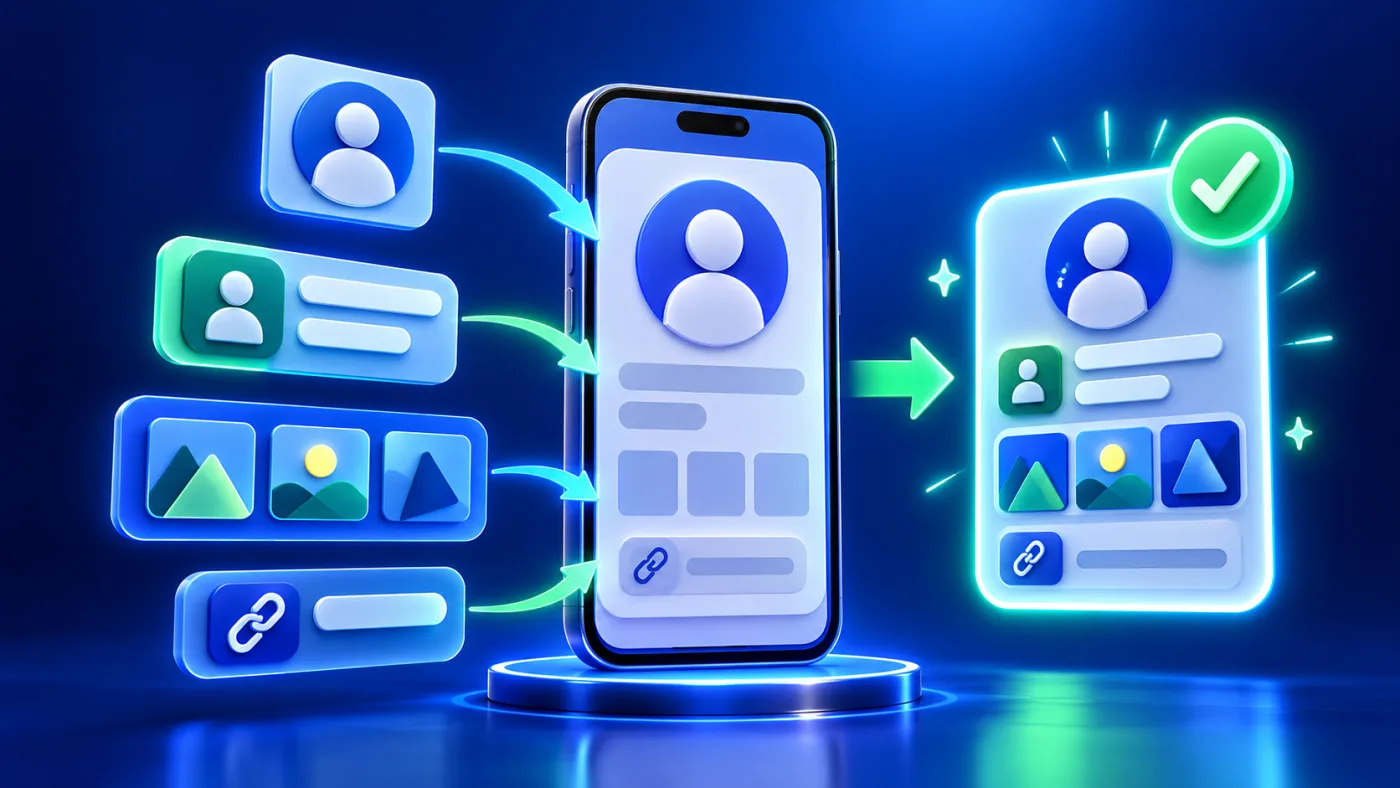
Begin with the public name, a short role or subheading and a description of what you actually do. Add a phone or email address only when it is meant for customer contact. Use complete URLs for websites, maps and social destinations rather than a username or an untested generic homepage. If a file or portfolio answers a common question, label it by what opens and check its viewing permissions while signed out.
The official profile field guide describes optional photos, contact routes, links and other sections. Availability varies by page type, style and account. Follow the fields displayed for the item you are editing; do not assume that every documented field appears in every layout. A hidden photo field can be a style choice, not an error. Use the size and file guidance displayed beside the current upload control.
- Identity: use a name, role and description that match the person or business presented.
- Contact: test phone, email and messaging destinations from the visitor side.
- Links: use descriptive labels and open the exact public destination on a second device.
- Images: use clear, current imagery and check the mobile crop in the actual preview.
For meaningful images, add brief alternative text that conveys their role; decorative images can use empty alternative text. W3C’s alt decision tree explains how to choose.
A practical digital profile setup sequence
- DefineWrite the visitor’s question and the one action the page should support.
- OpenFind the existing item in My Cards or My QR and enter its editor.
- ChooseMatch page type to function, then inspect the available styles.
- FillAdd relevant public details, links and media; leave unsuitable sections off.
- SaveUse Save Changes and review the live preview for both text and layout.
- TestOpen View or the public URL on another phone and try every intended action.
This sequence follows the published ADMAL guide. Button wording may differ with account or screen, so use the control that serves the described action. The final check must happen on the real public page: an editor preview alone cannot prove that a visitor can open an external link, download a file or complete a contact action.
Worked example: a professional contact page
Consider a consultant who meets potential clients in person. The visitor needs to identify the consultant, see a concise explanation of the service and choose between a work sample and direct contact. The consultant updates the existing profile, selects a suitable profile style, writes the role in plain language and adds a public portfolio URL. Then the consultant saves and opens the page from a second phone that is not signed in. They check that the portfolio opens without a private login and that the contact button reaches the intended destination.
That test confirms only the route and on-screen behavior observed on the test device. It does not prove that someone sent a message, became a lead or bought a service. If the consultant changes the portfolio later, they should edit the existing destination and repeat the visitor test. If the URL is printed in a static QR on a physical item, confirm the printed destination before production.
Check privacy and common failure points
- Wrong item: compare the public URL with the item you intend to share before editing.
- Incomplete link: use the full destination and open it while signed out.
- Too much personal data: publish only details that visitors need; inspect images and files for private information.
- Dead action: test call, email, messaging, map or file buttons on another phone.
- Unreadable mobile layout: view the profile at phone width and review image crops and mixed Arabic/English text.
- Assumed availability: verify the current editor and account rather than promising a field shown in another style.
The save, preview and test checklist also recommends testing QR scans and NFC taps where those are part of the actual product. A printed QR is a physical design decision; the destination needs to be confirmed before manufacturing. A writable NFC tag has its own programming and locking rules, so verify the exact tag and app before changing it.
Questions before you share
Should I fill every field in the editor?
No. Use fields that help the intended visitor. Some fields are conditional on page type, style or account, so an absent field does not automatically mean the profile is broken.
Can I change a detail without making a new QR?
For an existing ADMAL Digital identity, edit that item and test its public page. The official guide advises against creating another QR merely to change a phone number, link or image. Confirm any printed QR destination before production.
Is Live Preview enough before sharing?
No. Save first, then open View or the public URL on a second device. Follow the contact and file links as a visitor would. Repeat the test after a meaningful change.
Does a button tap prove a customer inquiry?
No. A tap shows an attempted action, not a completed message or sale. Confirm the outcome in the destination where it occurs, such as your inbox or the relevant account workflow.