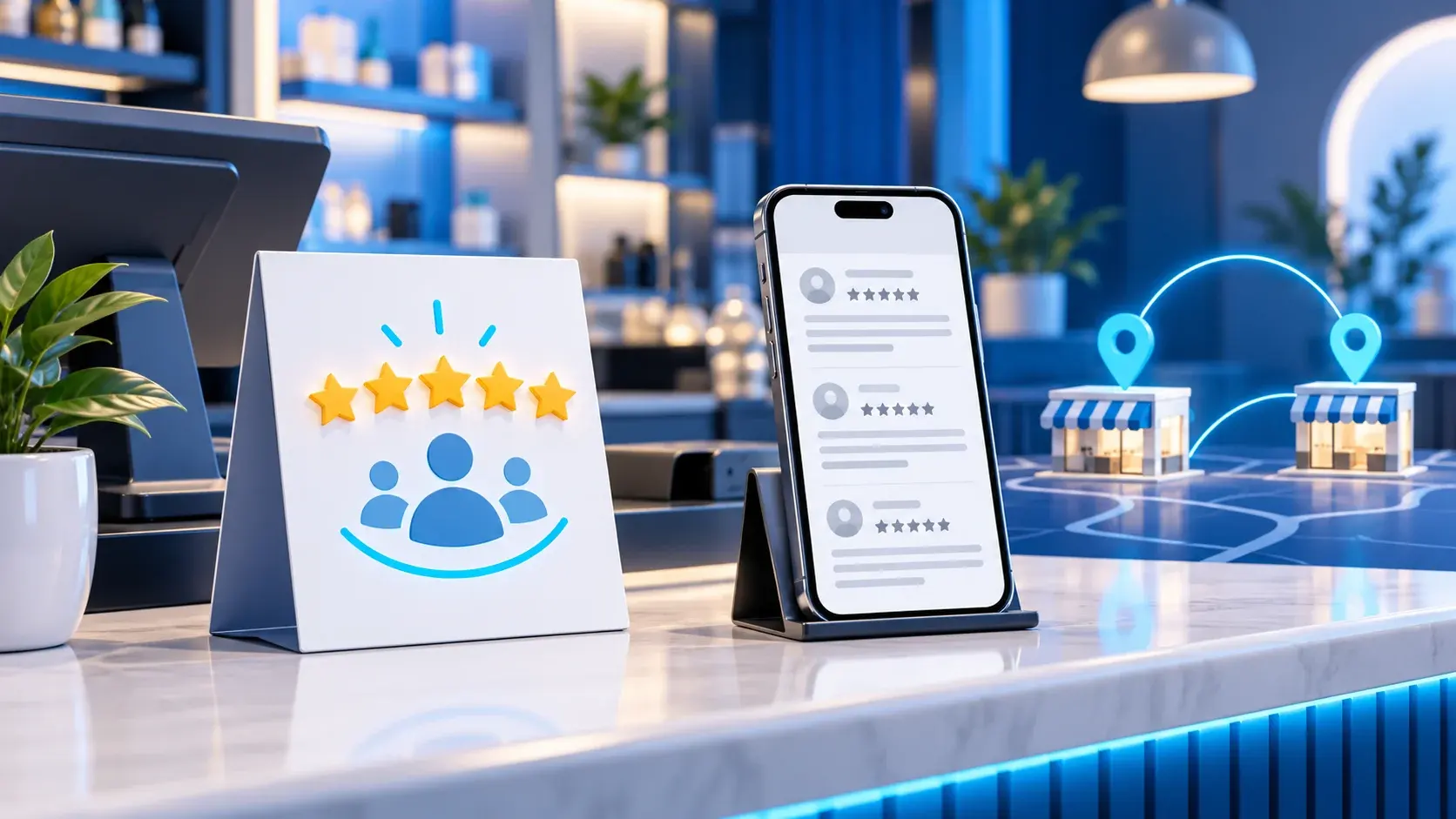
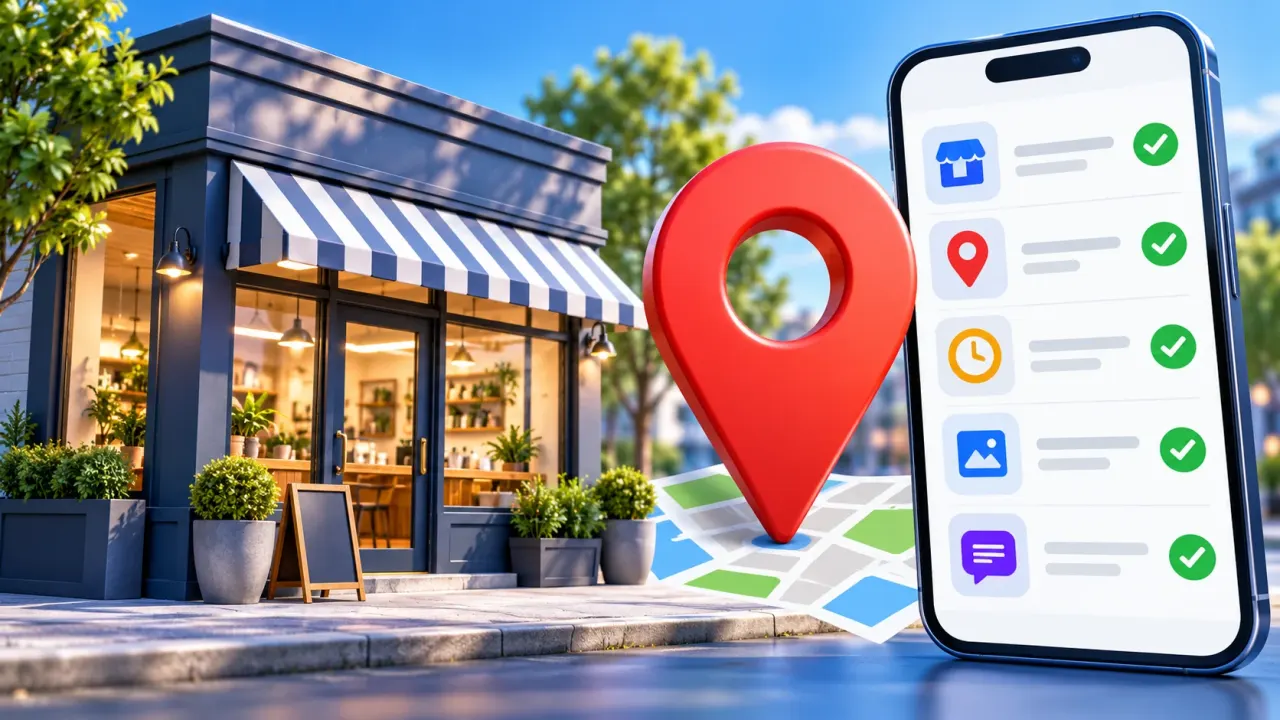
“Google Maps SEO” is often sold as a shortcut. A practical audit starts with the public profile and the customer’s task. Can someone confirm that the business is the right one, in the right place, open at the stated time, and reachable? This guide turns Google’s published Business Profile guidance into an owner-controlled review. The cover is a conceptual illustration, not a real storefront or profile. This article does not claim access to Google’s algorithm or results from an ADMAL customer campaign.
Understand what Google says about local results
Google’s local ranking guidance names three broad factors: relevance (how well the profile matches the search), distance (how far the business is from the searcher or searched place) and prominence (how well known it is, drawing on signals including links and reviews). These are explanations, not a formula a business can calculate or buy. Google explicitly says there is no way to request or pay for a better local ranking.
A business can improve the information it controls. It cannot move a customer’s location, force a particular result position or make a scan equal a new review. Treat every claimed improvement as an observed result only when the business’s own verified data supports it.
Audit the public profile before changing anything
Open the profile in Google Search or Maps as a visitor, then compare it with the verified management view. Record the current public state before editing. Google says profile edits may be reviewed before they appear publicly, so a saved field and a live field are not always the same thing. Use this compact worksheet for each location:
| Field | What to verify | Evidence to keep |
|---|---|---|
| Business identity | Real-world name and primary category match the actual business. | Public listing and approved business name. |
| Place | Customer-facing address or accurate service area, as applicable. | Public map pin or service-area display. |
| Availability | Regular and special hours reflect when service is actually available. | Published hours and current operating schedule. |
| Contact route | Website and phone reach the intended location or team. | Opened destination and a test call or permitted contact check. |
| Visuals | Current photos show the real premises, service or products. | Public image set and date of last owner review. |
| Reviews | Recent genuine reviews can be read and replies are accurate and respectful. | Public review and reply view, without customer-private notes. |
The table is an audit template, not a claim that ADMAL inspected a particular business. Do not paste private account data into a public document. If a field is wrong, note who owns the correction and check the public listing again after Google processes it.
Fix category, place and hours with the right owner account
The Business Profile editing guide says an authorized account can edit business details and that Google may review changes. Choose the category that describes the business itself. Google’s category guide explains that the primary category should represent the main business; adding an unrelated category to catch more searches misdescribes it. Check a multi-location business one location at a time.
For a location customers visit, verify the public address and map pin against the actual entrance. For a service-area business, use the applicable service-area controls instead of publishing a home address that customers should not visit. Then review normal hours and exceptions. Google’s hours guide describes main hours and special hours. A profile that says “open” when the business is closed is a customer experience error even if its search visibility is strong.
Review photos and customer feedback responsibly
Google recommends photos and videos that help people understand the business. Start with current, truthful visuals: the entrance, working area, product or service as appropriate. Avoid a generated image that a visitor could mistake for the real premises. Check the public order and crop on a phone after upload; the management thumbnail alone is not the visitor view.
Read and reply to reviews through the verified profile. Google’s review management help says replies appear publicly as the business after review. Answer the point raised, protect customer privacy and avoid arguing in public. Google’s contribution policy disallows paid or pressured reviews and selective requests for positive ratings. Ask for an honest account of a real experience; the customer controls whether to review and what to say.
Where an ADMAL review card fits
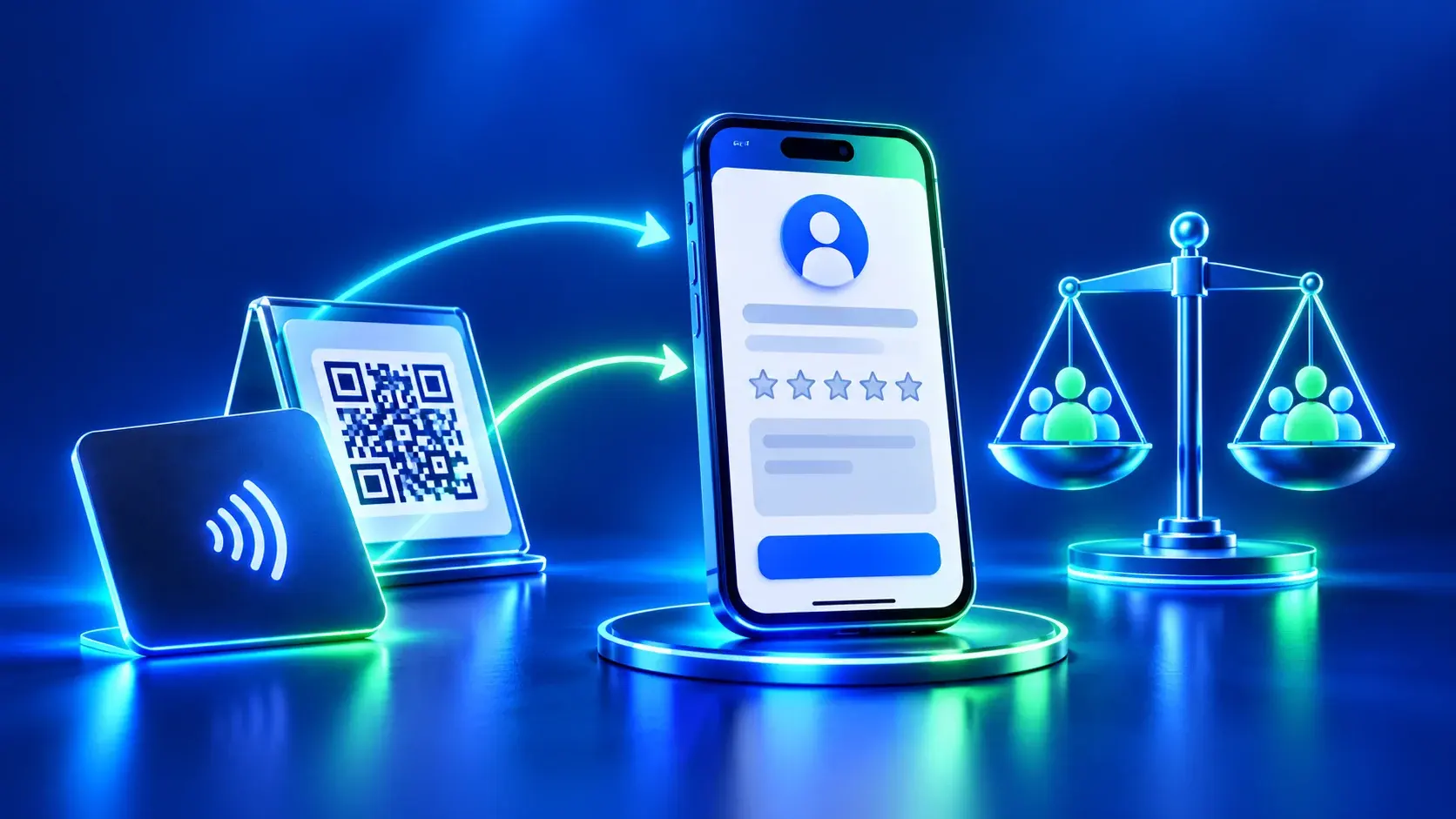
An ADMAL matte PVC review card can carry a confirmed Google review destination through a printed QR and NFC touchpoint. This is a visitor-access tool, not an editing control for the Google Business Profile. It does not correct a category, hours, address or an inaccurate map pin, and it cannot promise a search position. Before print approval, use our Google review-link test to confirm the correct business and branch. Test the finished QR and NFC separately.
Place the card only where a customer can choose to use it without pressure. The card may remove the need to search for the review destination, but only a genuine customer action can create a review, and Google decides what appears publicly. Keep the physical route and the public profile accurate as separate responsibilities.
Measure the profile, then investigate changes
For a verified profile, Google’s performance guidance describes views, searches and interactions. Available metrics vary by business, and some data can include paid as well as organic exposure. Compare the same location over comparable periods and write down profile edits, hours changes or seasonality before interpreting a difference. A view is not a visit; a card tap is not a review; a review is not proof of a sale.
- Capture the baselineSave the public profile state and the period shown in the verified performance view.
- Fix a documented errorChange an incorrect field through the authorized owner account.
- Check publicationReopen Search and Maps as a visitor after the edit is processed.
- Compare carefullyLook at the same location and comparable time periods; record other changes.
- Keep the result honestReport what the available metric says, not a ranking or sales outcome it cannot prove.
Frequently asked questions
Can I pay Google for a better local rank?
Google says there is no way to request or pay for a better local ranking. Paid ads and organic local results must be interpreted separately.
Will an NFC review card improve my position on Maps?
A card can help a customer reach the correct review page. It does not guarantee a review or a ranking change. Check the Business Profile itself and read Google’s local ranking guidance.
Should I choose many categories?
Choose categories that truthfully describe the business. The primary category should match its main activity; follow Google’s current category guidance for additional categories.
How do I know whether an edit is public?
After saving in the authorized account, reopen the listing as a visitor. Google may review an edit before it appears.