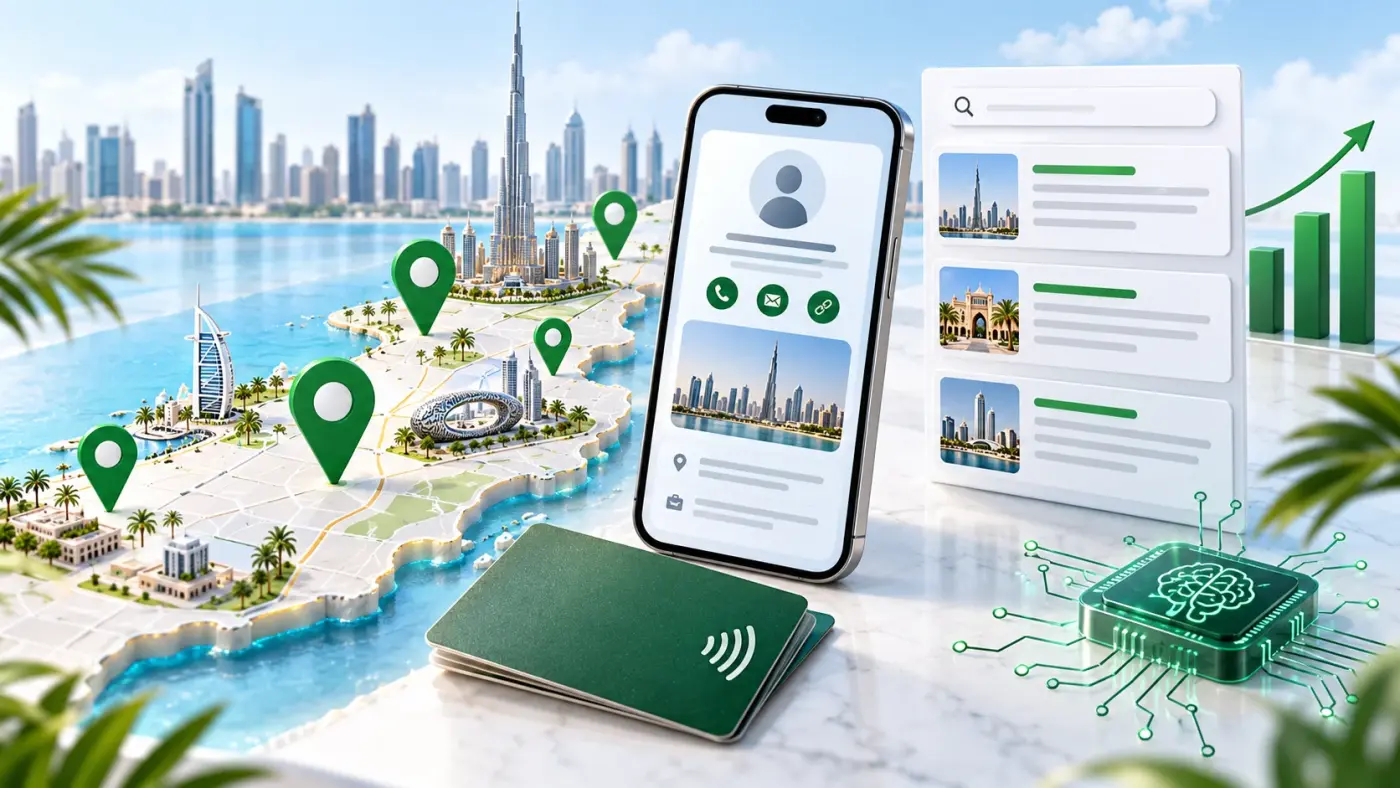
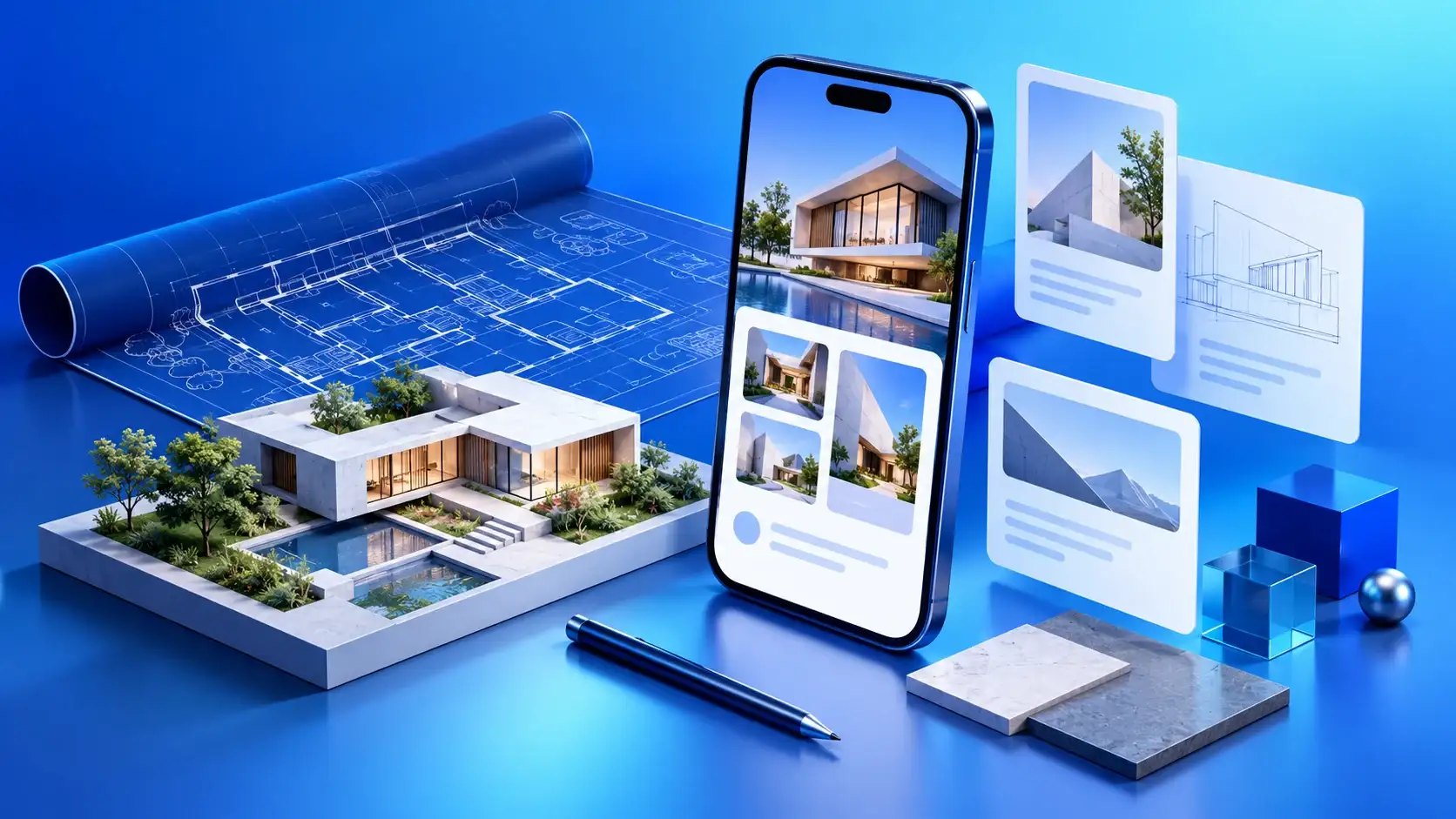
A digital business card for architects in the UAE can give a client, collaborator or event contact a clear route from your name to selected projects, your role and a useful way to continue the conversation. In practice, the value comes from clarity, not from adding every image or link.
Plan a digital business card for architects around the visitor’s question
For example, a client may want to understand your design approach. A consultant may need to know what coordination you handle. A recruiter may need to distinguish your contribution from the wider studio team. Write down the likely question, then make the first screen answer it with your name, role, a concise description and the most useful next action. If your practice serves multiple UAE markets, name only locations relevant to your work: Dubai, Abu Dhabi, Sharjah, Ajman, Fujairah, Umm Al Quwain or Ras Al Khaimah.
A short profile does not replace a tailored proposal, full architectural portfolio or project website. It can make the next step easier. For basic profile fields, see ADMAL’s profile guide; this article focuses on project examples. If a physical card fits the visitor journey, see ADMAL’s current business card range.
Choose projects for a digital business card for architects
Therefore, select examples for the question they answer, not only for their photographs. Give the permitted project context, state your actual role, describe one design decision, show approved evidence and offer a relevant contact route. Use precise contribution language. If you worked in a larger team, say so. Label student work, concept studies and competition entries clearly. Do not imply that you completed work done by others.
Then, build a concise project sequence from context to your contribution, one decision and selected visuals. Keep full drawing sets and deeper process notes in a separate portfolio when a specific audience needs them.
Organise a digital business card for architects around available fields
ADMAL’s current User Guide documents identity and contact fields, experience entries, links, named file links and a gallery. It describes up to three experience entries, up to three named file links, and a gallery with one photo-or-video position followed by four image positions. Fields can depend on the selected style or account. Follow the editor available to your profile instead of assuming every field appears.
- Put your name, role and short description first.
- Use experience for a current or relevant past role.
- Choose a few approved visuals with clear captions.
- Add a public portfolio file only when a larger sample helps.
- Keep only contact and social links you maintain.
A file link opens a document hosted elsewhere; it does not mean ADMAL hosts that file. Set its viewing permission and test it while signed out. If only you can open it, it is not ready to share.
Protect client and project information
Before publishing, review the permissions and agreements that apply. Remove private client details, personal contact data, access codes, security-sensitive layouts and anything not intended for public viewing. Participation in a project does not automatically grant permission to publish every drawing or photograph. Ask the relevant rights holder when permission is unclear. If a project cannot be shown, use a general description only when allowed.
By contrast, a public profile should contain only information you intend to show to an undefined audience. Client files, drawings and unpublished site details need a separate permissions check and may not belong behind a public link. Do not upload sensitive material to an open link and rely on its obscurity as protection. Review the host service’s sharing settings and test access without your account.
In addition, review each professional or social link. Does it reach the correct profile? Is its information current? Does its label explain what will open? After removing an old link, test the saved public page and preview again. These are editorial checks, not legal advice; applicable duties may depend on contracts, rights, client instructions and local requirements. ADMAL’s privacy information explains that content on public pages may be visible to visitors.
Make project images work on a phone
Choose a crop that communicates one idea at small size. Avoid tiny text embedded in plans and order visuals from overall context to a useful detail. Do not repeat near-identical images to fill the gallery. Follow the upload limit shown for the field you are using; a limit documented for profile and cover fields should not automatically be applied to every gallery or video field. Keep captions factual and label renderings or concept visuals as such.
Test a digital business card for architects across devices
Saving is not the same as checking. Review the preview, open the public profile on a small phone over an ordinary connection, then test contact actions, files and social links while signed out. Confirm text and images remain clear and the next action is obvious. Ask someone unfamiliar with the project what they understand about your role. If visitors arrive through QR or NFC, test the exact configured route; a scan or tap opens its destination but does not prove that someone viewed the full profile or contacted you.
Keep the direct URL as a fallback when a device does not open the destination. W3C guidance on link purpose explains that link text or context should make its purpose clear. Do not treat page opens as proof of qualified enquiries. Confirm a real enquiry through its receiving channel. Note any changed role, broken link, project that is no longer public or image that no longer represents your work.
Write captions that explain a design decision
Similarly, a useful caption tells visitors why an example is included. Name the type of challenge you addressed, then state what you did and what changed in the proposal. Avoid broad claims such as innovative or sustainable unless you explain the specific evidence. Label early concepts and renderings so readers do not confuse them with completed work.
Two sentences are often enough: one gives permitted context, and the other clarifies your contribution or the decision shown. This keeps the portfolio easy to scan on a phone while preserving authorship and context.
Separate public work from restricted material
A public profile should contain information you intend to show to an undefined audience. Client files, drawings and unpublished site details need a separate permissions check and may not belong behind a public link. Do not upload sensitive material to an open link and rely on its obscurity as protection. Review the host service’s sharing settings and test access without your account.
Review each professional or social link too. Does it reach the correct profile? Is its information current? Does its label explain what will open? After removing an old link, test the saved public page and preview again so you know the change is visible.
Review the profile around real changes
Before an exhibition or meeting, check that selected examples fit the audience you expect. When your role or team changes, update your description, experience and contact routes. Recheck image permissions when project status or client instructions change. Avoid changing every part of a profile simply to make it feel new; keep what remains accurate and useful, and replace only material that has become outdated or unclear.
Used this way, a digital business card for architects acts as a practical introduction: it shows approved work, explains your contribution and offers a clear follow-up route without promising a commercial outcome or claiming unverified achievements.
Before sharing
- Tell visitors who you are and the work you do.
- State your role in each example and credit the wider team when relevant.
- Confirm permission to share each image and file.
- Test contact and social links while signed out.
- Open the page on a phone and confirm the next action is clear.
A useful profile explains your work, respects information boundaries and guides visitors to a relevant next step.