

ADMAL User Guide: From Order to Daily Management
This ADMAL User Guide covers ordering, My Cards, My QR, Edit Digital ID, page types, links/files, testing/sharing, analytics, contacts, subscriptions, orders and account management.
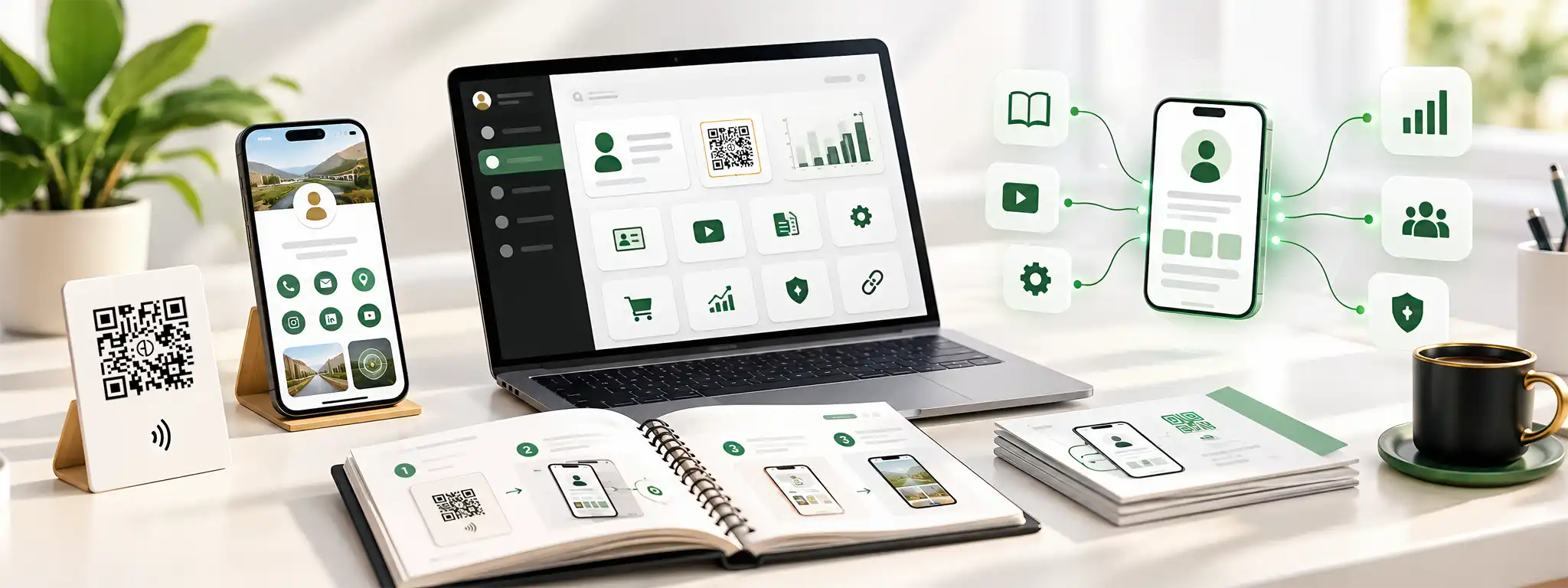
01Start with the ADMAL User Guide
This ADMAL User Guide helps you choose what to do now and jump to the correct area. For example, use the menu to open the task you need.
+
Start with the ADMAL User Guide
This ADMAL User Guide helps you choose what to do now and jump to the correct area. For example, use the menu to open the task you need.
A physical product from ADMAL
ADMAL customers can check Subscriptions for the linked service, then open My Cards for the digital identity.
Setting up an ADMAL QR plan
For a new QR, choose My QR, add a QR link, then select Profile, Review, Menu or Pet.
Edit information in ADMAL
To change data, select the existing item and use Start Now / Edit / Form Settings. That keeps you from creating a duplicate link just to update it.
View ADMAL analytics
You can review performance with Analyze on the card or QR item. Alternatively, open Analytics.
Contact requests in ADMAL
For contact requests, go to Exchange Contact or Address Book, follow up, then use Mark as Contacted.
ADMAL account help
Open Settings, or use Forgot Password when you do not know the password.
If you are unsure about the product, QR plan, review platform or product option, contact support before checkout.
02Order a physical product from ADMAL — User Guide
In this User Guide, follow the purchase path for a physical card, stand or tag connected to ADMAL Digital.
+
Order a physical product from ADMAL — User Guide
In this User Guide, follow the purchase path for a physical card, stand or tag connected to ADMAL Digital.
- 01Choose the correct product
First, start with the use case: Business Card, Review Card, Review Stand, Menu Stand or Pet Tag.
- 02Review product options
Next, review every option shown by that product: size, material, color, mode/fulfilment option, and Unique / Duplicate when offered. Do not assume every product has the same options. For Review products, select the correct platform before payment.
- 03Review the cart
Then, confirm the item name, quantity and options before checkout.
- 04Complete checkout
After that, enter billing, shipping and payment details, then place the order.
- 05Keep confirmation
Once checkout is complete, you receive a confirmation page/email. ADMAL may contact you to confirm production or customization data.
- 06Go to the dashboard
Finally, the linked service appears in Subscriptions; its digital identity appears in My Cards.
When the site asks you to sign in or register, use the account you want to keep for future orders and digital identities. If you already have an account or use Google with the same email, keep using it; as a result, your orders and digital identities stay together.
Review anything that will be printed or fixed on the physical product. Digital content is easier to change later than a produced item.
03Buying an ADMAL Digital QR Plan — User Guide
This User Guide explains that a QR package is separate from a physical-product subscription and provides capacity for independent My QR links.
+
Buying an ADMAL Digital QR Plan — User Guide
This User Guide explains that a QR package is separate from a physical-product subscription and provides capacity for independent My QR links.
- 01Open Pricing
First, choose QR 1, QR 3, QR 7, QR 10 or QR 20 based on the number of links you need.
- 02Complete checkout
Next, choose the plan, pay, then keep the confirmation page/email.
- 03Check Subscriptions
After checkout, your QR Package status and period appear there.
- 04Open My QR
Then, select Add QR Link, choose the type, then Create QR.
- 05Configure it
Finally, open Form Settings / Edit and enter the page data.
Used
Links currently consuming package capacity under the current usage model.
Remaining
Unused capacity available for new QR links.
Every ADMAL QR link works independently
Each QR has its own UID, public URL, page type, content, style, controls and analytics.
04Managing ADMAL QR Plan Links — User Guide
The User Guide explains how Create, Edit, Disable, Delete and Restore differ.
+
Managing ADMAL QR Plan Links — User Guide
The User Guide explains how Create, Edit, Disable, Delete and Restore differ.
Share / Show QRPublic URL, QR view/download and sharing.+
Also, use sharing tools to distribute the same existing identity, not to create another QR. Verify the Public URL, then test View QR / Download QR from another phone before printing or distribution.
Disable / EnableTemporary public-access control without deletion.+
Use Disable to stop public access temporarily; Enable restores it when the link/subscription state allows. Choose this temporary pause when a page is not ready or should stay hidden. Instead, do not use Delete for a temporary pause.
Delete / RestoreDeletion with a restore window, not a hide control.+
The current My QR confirmation states that a deleted link can be restored within 30 days. Restore is intended to return the same identity/UID when eligible and capacity is available. If the QR is already printed, confirm the impact before deletion.
However, available controls can differ by package state. Use the action shown for the current state; if the system rejects it, do not create a replacement UID as a workaround.
05Finding Everything in the ADMAL User Guide
After purchase, this ADMAL User Guide helps you find each dashboard area.
+
Finding Everything in the ADMAL User Guide
After purchase, this ADMAL User Guide helps you find each dashboard area.
For clarity, these descriptions are intentionally short. Next, select an area to open its guide; the guide includes a return button to the same option.
My Cards — what needs explanation?
Activate / DeactivateTemporary access control without deletion.+
Use Deactivate when public access should pause temporarily, then Activate after the page is ready. This is safer than Delete when the identity should be preserved.
DeleteThis is not the same workflow as My QR Delete.+
Unlike My QR, My Cards deletion does not expose the same 30-day self-service Restore path. If a card is deleted by mistake, contact support before creating a replacement identity that may change the URL/UID.
Add Contact vs Exchange ContactThe data direction is different.+
The Add Contact action saves the page owner’s contact details on the visitor’s phone. In contrast, Exchange Contact works in the opposite direction: the visitor submits their details to the page owner for follow-up.
06Editing an ADMAL Digital ID — User Guide
First, edit the existing Digital ID; the public ADMAL page then shows the saved visitor-facing information.
+
Editing an ADMAL Digital ID — User Guide
First, edit the existing Digital ID; the public ADMAL page then shows the saved visitor-facing information.
- 01Open the correct item
To begin with, open the relevant card or link in My Cards or My QR.
- 02Start editing
Then, select Start Now or Form Settings / Edit.
- 03Choose the style
Afterward, select Current Style / Choose Style / Apply Style. In addition, Page Type controls function, while Style controls presentation.
- 04Complete needed fields
Also, enable only the sections you want and use real information.
- 05Save Changes
After that, save and review Live Preview.
- 06Open the public link
Finally, use Open Digital Link / View to test the real public version.
Instead, edit the existing identity when changing information. Do not create a second QR just to update a phone number, URL or image.
07Choosing an ADMAL Page Type and Style — User Guide
Start by choosing a function, then select its presentation from the preview.
+
Choosing an ADMAL Page Type and Style — User Guide
Start by choosing a function, then select its presentation from the preview.
Page Type vs StyleType controls function; Style controls presentation.+
Choose the Page Type by purpose first: Profile, Review, Menu or Pet. Then choose the Style from the actual preview. Do not change the page type only to obtain a different visual treatment.
Profile FreeThe current form definition includes Free as an additional option.+
The current form includes Free alongside Executive / Professional / Creator / Company. However, some field groups are not shown in Free, so follow the fields presented by the editor instead of assuming all primary-style features are available.
Review StylesA functional platform choice, not only a visual choice.+
Google / Trustpilot / Yelp / TripAdvisor / Facebook / Clutch identify the intended review destination. Select the correct platform and use the matching Review Link. Stand is different because it supports multiple links.
The current source confirms the Black / White / Creator names. However, the guide intentionally avoids inventing visual differences that should be judged from the actual preview.
08ADMAL Profile / Business User Guide
Profile is the broadest page type. In addition, it covers identity, contact, experience, links, files and gallery.
+
ADMAL Profile / Business User Guide
Profile is the broadest page type. In addition, it covers identity, contact, experience, links, files and gallery.
Simple fields — complete them directly
Fields that need extra attention
Cover Photo / Profile PhotoImage quality, size and style-dependent visibility.+
Use a clear web-optimized image. For example, the documented editor UI shows a 1 MB limit for the visible Cover/Profile fields there; always follow the limit shown by the current field. Some Styles hide Cover or Profile Photo, so a missing field can be normal.
Website / Map URLUse the complete destination, not only a name.+
Website: For example, use a complete URL such as https://example.com. Map URL: open the exact Google Maps location → Share → Copy Link. Test the destination from another device.
Exchange Contact + Button NameReceive visitor details inside ADMAL.+
Enable Exchange Contact only when you want visitors to send their details. When enabled, Button Name appears so you can label the action. Then, follow submissions in Exchange Contact / Address Book and use Mark as Contacted after follow-up.
Experience — MAX 3Experience groups appear sequentially.+
Also, each entry contains Job Title, Company, Period and Description. Moreover, the current maximum is 3 experiences. For example, Experience 2 appears after Experience 1 has Job Title + Company; Experience 3 appears after the same base fields are entered for Experience 2.
Social and media links
Social LinksThese are URL fields, not username-only fields.+
Also, services currently include WhatsApp, Facebook, Instagram, LinkedIn, TikTok, Snapchat, YouTube, Telegram, X and Pinterest. Therefore, open the exact public profile/page and copy the complete URL. WhatsApp example: https://wa.me/971501234567.
Google ServicesEvery action needs the correct destination URL.+
Available fields include Google Maps, Google Review, Calendar Booking, Meet, Drive, Docs, Form and Google Play. For this reason, do not use a generic google.com URL; paste the exact service/file/location destination and test it while signed out when relevant.
LanguagesEnable the language, then select the level.+
Available language options are English, Arabic, Russian, French, Turkish, Urdu and Hindi. Then, choose the level you want: Basic / Intermediate / Advanced / Fluent. Accordingly, enable only languages you want to present publicly.
PDF / File Links — up to 3Clear label + public URL for each file.+
The current structure supports up to 3 named file links. Use a label such as Company Profile, then add the public viewing URL. Additional file fields appear sequentially. Also, test the link in incognito so access does not depend on your login.
Gallery — 1 Photo/Video + 4 ImagesFive media positions in the current structure.+
Additionally, the first slot is Photo OR Video with a text/caption field, followed by Photo 2 through Photo 5 with their text fields. However, do not apply the image 1 MB rule to video automatically; the inspected data does not provide a verified field-specific video MB maximum.
Some fields are Style-dependent, and Free exposes a smaller set. Therefore, follow the actual Edit Digital ID form for the current item instead of trying to force a field that is not shown.
09ADMAL Review — One Link User Guide
The goal is focused: route the visitor to one intended review platform.
+
ADMAL Review — One Link User Guide
The goal is focused: route the visitor to one intended review platform.
Review profile fields in this User Guide
Review Link — requiredThe direct destination for the selected review platform.+
Also, Review Link is required. Select the correct platform Style, then paste the direct destination for the same business on Google / Trustpilot / Yelp / TripAdvisor / Facebook / Clutch. Do not use the platform homepage or another business.
Before printing, open the public page on another phone and tap the review button.
If the physical product is tied to a specific platform, confirm platform and URL before production; changing the destination later may require support/order adjustment.
10ADMAL Review Stand — Multi-link User Guide
By contrast, Review Stand supports multiple destinations in one Stand style.
+
ADMAL Review Stand — Multi-link User Guide
By contrast, Review Stand supports multiple destinations in one Stand style.
Review stand details in this User Guide
Link 1 through Link 6The same pattern repeats; it does not need six separate explanations.+
For this product, Review Link 1 is the primary required destination. Links 2 through 6 are optional toggles; enabling an additional link reveals its Button Text + Review Link, and that destination URL is required.
Use clear labels such as Google Reviews or Trustpilot. Then, test every enabled destination from the public page.
If an extra platform is not ready, leave that link disabled instead of publishing sample data or an incorrect account URL.
12ADMAL Pet and Animal Pages — User Guide
Use the pet page for identification, owner contact and intentionally public information.
+
ADMAL Pet and Animal Pages — User Guide
Use the pet page for identification, owner contact and intentionally public information.
Simple fields — no long explanation needed
Fields that need extra attention
Medical InformationPublic-facing information when the page is published.+
In addition, current fields are Medical Condition, Allergic To, Blood Group, Vaccinations and Notes. Enter only accurate information useful for identification/emergency context, and do not publish sensitive data you do not want available to anyone who scans the tag.
Owner 1 / Owner 2Contact details and WhatsApp as a URL.+
For Owner 1, enter Name / Phone / WhatsApp / Address. WhatsApp is a URL field; use a link such as https://wa.me/971501234567. A toggle can reveal Owner 2 with the same fields when a second contact is needed.
Photo GalleryUp to 4 images.+
The current Pet Gallery exposes 4 image slots. Also, use clear optimized images and avoid duplicates that do not improve identification.
Web LinksUp to 3 label + URL pairs.+
Each entry contains Link Name + URL, with up to 3 links. For example, use Veterinary Clinic + the clinic website or direct Maps URL. Test each destination from another phone.
Also, keep pet identity, owner contact and important emergency information current after any phone or medical change.
13Entering URLs correctly — User Guide
Do not enter a username or generic homepage instead of the complete destination.
+
Entering URLs correctly — User Guide
Do not enter a username or generic homepage instead of the complete destination.
Core rule: open the exact destination you want the visitor to reach, then copy the complete public URL. Do not type a username or place name into a URL field unless that specific field asks for it.
Website + Social ProfilesUse the complete public profile/page URL.+
Enter the complete Website URL, such as https://example.com. For Facebook, use https://www.facebook.com/YourPageName. Instagram: https://www.instagram.com/username/. LinkedIn: copy the full Profile or Company Page URL. The same principle applies to TikTok / Snapchat / YouTube / Telegram / X / Pinterest.
WhatsAppUse a wa.me link when the field expects a URL.+
For example, use https://wa.me/971501234567. Do not enter @username or plain unrelated text into a URL field.
Google Maps + Google ReviewUse the exact business/location destination.+
Maps: open the correct place → Share → Copy Link. Google Review: use the intended business/review destination, not generic google.com. Test from another phone.
Files / Drive / FormsVerify access permissions.+
Also, use the public/shareable viewing URL for the intended file, Drive, Docs or Form destination. Test in incognito; if it unexpectedly requires your account login, correct sharing before publishing.
14PDFs, Files and Google Drive — User Guide
For large or frequently updated documents, use a public/shareable external file URL instead of a heavy ADMAL upload.
+
PDFs, Files and Google Drive — User Guide
For large or frequently updated documents, use a public/shareable external file URL instead of a heavy ADMAL upload.
Host and share the fileADMAL can use the link while the document remains externally hosted.+
To share a customer file, host it on Google Drive or another reliable service, then set sharing for the intended audience. Also, for a customer-facing file, verify that it opens without relying on your own signed-in account.
File label + URLUse a clear label and the direct viewing destination.+
Examples: Company Profile, Price List, Menu PDF, Catalogue, Portfolio. Paste the viewing URL into the relevant PDF URL / Drive URL / Web Link field, not an account-management URL.
Update the file laterDo not assume every host preserves the same URL.+
If your hosting workflow allows the document to be updated/replaced while keeping the same share URL, the ADMAL link can remain unchanged. This depends on the hosting service and replacement method, so retest after every update.
Also, do not make a document public only because ADMAL needs a link. Use appropriate access restrictions for sensitive content.
15Images and Video
Before you upload media, optimize it so the public page stays efficient on mobile.
+
Images and Video
Before you upload media, optimize it so the public page stays efficient on mobile.
What does the current editor expose?
Cover / Profile image sizeFollow the limit displayed by the field.+
Documented Edit Digital ID screenshots show Maximum image size: 1 MB for the visible Cover/Profile fields. However, do not automatically apply that number to every Gallery or Video field; follow the current uploader message.
Compress a large imageResize + WebP before upload.+
If the source image is 8–10 MB, reduce excessive dimensions and convert to WebP. Start around 75–85 quality and inspect the result. The goal is to get below the field limit without damaging faces, logos or text.
For example, Squoosh is a practical option for this workflow.
VideoNo verified field-specific MB number in the inspected definition.+
The first Profile gallery slot is Photo OR Video, and the inspected data does not provide a verified field-specific video MB maximum. If upload fails, follow the current uploader message or send it to support; do not randomly rename the extension.
16Save → Preview → Test → Activate
This User Guide explains why saving is not the end of setup: testing is required before sharing.
+
Save → Preview → Test → Activate
This User Guide explains why saving is not the end of setup: testing is required before sharing.
- 01Save Changes
First, save and confirm completion.
- 02Review Live Preview
Next, check text, images and layout.
- 03Open View / Public URL
Then, test the real public version.
- 04Use a second phone
Also, do not rely only on your own signed-in device.
- 05Check every action
In addition, test every action: Call, WhatsApp, Email, Website, Map, Add Contact, Exchange Contact, Review, Menu, Files, Social and Gallery.
- 06Scan the QR
After that, view/download the QR and scan it from another device.
- 07Confirm NFC when used
Before sharing, confirm that an NFC tap opens the intended destination.
- 08Enable
Finally, if the page was disabled during setup, enable it after testing passes.
Instead, use Disable instead of Delete. After that, edit, save, retest, then Enable.
18Analytics and Report
Understand performance using multiple signals and the page goal.
+
Analytics and Report
Understand performance using multiple signals and the page goal.
Core ADMAL metrics
Average Stay TimeDo not interpret it alone.+
A short visit can mean the visitor reached the intended action quickly, or left without finding what they needed. Therefore, compare it with Interactions and the page goal before deciding.
Action / Contact GroupsSee which channels visitors actually use.+
If a channel such as WhatsApp or Website receives meaningful interaction, keep it accurate and easy to reach. Do not redesign the page around one event or a very small sample.
Content / SWOT / ConfidenceSupporting guidance, not a raw KPI.+
These indicators help interpret content completeness/strength and confidence, but do not replace Opens and Interactions. When activity is low, treat recommendations as early signals.
Read the report
- 01Confirm card and range
Card / UID / Type / Status and Selected Range.
- 02Start with the KPI Snapshot
Opens, Interactions and Average Stay Time.
- 03Review Key Findings
What Happened / What Is Working / Needs Attention / Next Check when shown.
- 04Save the report when needed
The current report is printable; use Print and Save as PDF.
Compare 7 Days with 7 Days or 30 Days with 30 Days. Do not treat a range change itself as improvement or decline.
19Exchange Contact
Lets visitors send their details to the card owner instead of one-way contact only.
+
Exchange Contact
Lets visitors send their details to the card owner instead of one-way contact only.
- 01Enable Exchange Contact
In Profile or Menu when available; Button Name can be customized.
- 02Visitor submits details
Afterward, the submission reaches the related contact records.
- 03Review data
Phone, WhatsApp, Email, Company, Source and other submitted detail.
- 04Use the appropriate channel
Call, WhatsApp or Email.
- 05Mark as Contacted
After that, update the status to prevent duplicate outreach.
- 06Delete only when needed
Instead, use Mark as Contacted for follow-up; delete the record only when you need it removed.
New
Not yet marked as contacted.
Contacted
Follow-up completed; useful to prevent duplicate team outreach.
20Address Book
The organized area for collected contacts, search and follow-up status.
+
Address Book
The organized area for collected contacts, search and follow-up status.
| Feature | Use |
|---|---|
| Total contacts | All stored records. |
| New contacts | New records. |
| Contacted | Already followed up. |
| This month | Current-month records. |
| Search | Name, phone, WhatsApp, email or company. |
| Filters | Status, source card and type. |
| View Details | Message, Page, Referrer, Created, Event ID when available. |
| Mark as Contacted | After follow-up. |
| Delete | When you actually want the record removed. |
Exchange Contact is the incoming submission workflow; Address Book is the organized record/search/status area. Use Status instead of memory to know who was handled.
21Subscriptions
There are two independent families: QR Package and Store Product/Page-Link.
+
Subscriptions
There are two independent families: QR Package and Store Product/Page-Link.
Subscription type
Status / Period / Used / RemainingRead the subscription type before taking action.+
Review Type/Product, status, From/To, Cycle when shown, and Used/Remaining for QR Package. Also, do not confuse QR Package capacity with a physical-product subscription.
Stop / ReactivatePause service without deleting the identity.+
For a normal paid subscription, Stop disables public access/related service while preserving ADMAL Digital data and order records. If valid time remains and the state allows, Reactivate restores service without a new payment or UID.
Renew / Change PlanUse the action exposed for the current state.+
Renewal/plan changes should preserve identity continuity rather than forcing a replacement QR. If Renew or Change Plan is not shown for the current state, do not create a second subscription as a manual workaround.
حالات الاشتراكControls and restrictions can differ.+
Do not apply paid Stop/Reactivate instructions blindly to every حالات الاشتراك state. Follow the status and controls shown by Subscriptions. The guide intentionally does not invent a grace period that is not verified in the current source.
22My Orders
The purchase transaction record: order, status, amount, payment, addresses and linked cards.
+
My Orders
The purchase transaction record: order, status, amount, payment, addresses and linked cards.
| What you see | Meaning |
|---|---|
| Order # + Status | Order number and status. |
| Date | Order creation date. |
| Product / Item | The purchased product, plan or line item shown in the order. |
| Total / Currency / Payment | Amount, currency and payment method. |
| Qty | Item quantity. |
| Linked card | Connected card when available. |
| Open Card / Activate Card | Card actions by state. |
| View Details | Additional details. |
| Billing / Shipping | Billing and shipping. |
| Created cards / Expected slots / Reorders / Retry | ADMAL metadata when shown. |
In short, Order = purchase transaction. Subscription = service status/period. Card/QR = the digital identity itself.
23Settings, Account and Password
This User Guide covers account, business, billing/shipping, plus Forgot Password when the current password is unknown.
+
Settings, Account and Password
This User Guide covers account, business, billing/shipping, plus Forgot Password when the current password is unknown.
ADMAL account settings fields
Fields/actions that need explanation
Login / Register / GoogleDo not create a second account for the same email.+
Use Register only when you do not already have an ADMAL account. In the inspected flow, Continue with Google links/uses the existing user when the same email is already known. Keep the same account for orders and digital identities.
PasswordRequirements + Update vs Forgot Password.+
Current requirements: at least 8 characters, uppercase, lowercase, number, special character, and matching confirmation. When you know the current password, use Update Password. If you forgot it, use Forgot Password with the same Email or Username instead of creating a new account.
Google account + local passwordUse Forgot Password with the same Google email.+
For a Google-linked account, use Forgot Password with the same email if you also want a local password. Do not register another account for this purpose.
Delete AccountA destructive action that may currently be unavailable.+
A Delete Account area may appear, but the current implementation can report that account deletion is not available. Do not use account deletion to troubleshoot login/subscription problems; contact support if the goal is account/data closure.
Log out when finished and keep the account email secure because it is used for password recovery.
24User Guide: Support and Quick Troubleshooting
Start with these checks, then send support enough context if the problem remains.
+
User Guide: Support and Quick Troubleshooting
Start with these checks, then send support enough context if the problem remains.
| Problem | Check first |
|---|---|
| Product missing | Confirm the correct account → Orders → Subscriptions → My Cards. |
| QR missing | Check Subscriptions for a QR Package → My QR → Used/Remaining. |
| Link opens wrong place | Use the complete correct destination URL, Save, then test on another phone. |
| Image rejected | Before editing the image, check the limit shown by that field and compress/convert to WebP. |
| Video rejected | Follow the current uploader message. Therefore, do not assume the image limit applies to video. |
| Hide QR temporarily | Instead, use Disable, not Delete. |
| Deleted an item from My Cards | My Cards does not expose the same Restore flow as My QR. Therefore, do not immediately create a replacement; contact support with the UID/order number. |
| Deleted QR | Check the Restore option during the window stated by the UI and confirm the package state/capacity allows it. |
| Stopped subscription | Open Subscriptions and use Reactivate only when it is offered for the current state. |
| Expired subscription | Use Renew / Change Plan when the page offers the appropriate action; otherwise, do not create a second subscription as a manual workaround. |
| Forgot password | If you forgot the password, use Forgot Password with the same account Email/Username. |
| Google + local password | Use Forgot Password with the same Google email instead of registering a new account. |
| Customer request arrived | Follow up through the appropriate channel, then Mark as Contacted. |
| A visible action fails | Do not retry repeatedly. Instead, capture the message and send the UID/status to support, especially for حالات الاشتراك states. |
What to send support
- Account email
- Order number for purchase issues
- UID or card/QR name for digital issues
- Subscription status shown at the time
- Clear screenshot of the message/page
- Short description: what you did, expected, and what happened
If the answer is still unclear, contact support before a destructive action.
Especially before deleting an in-use QR, changing a printed Review product, or deleting an account.